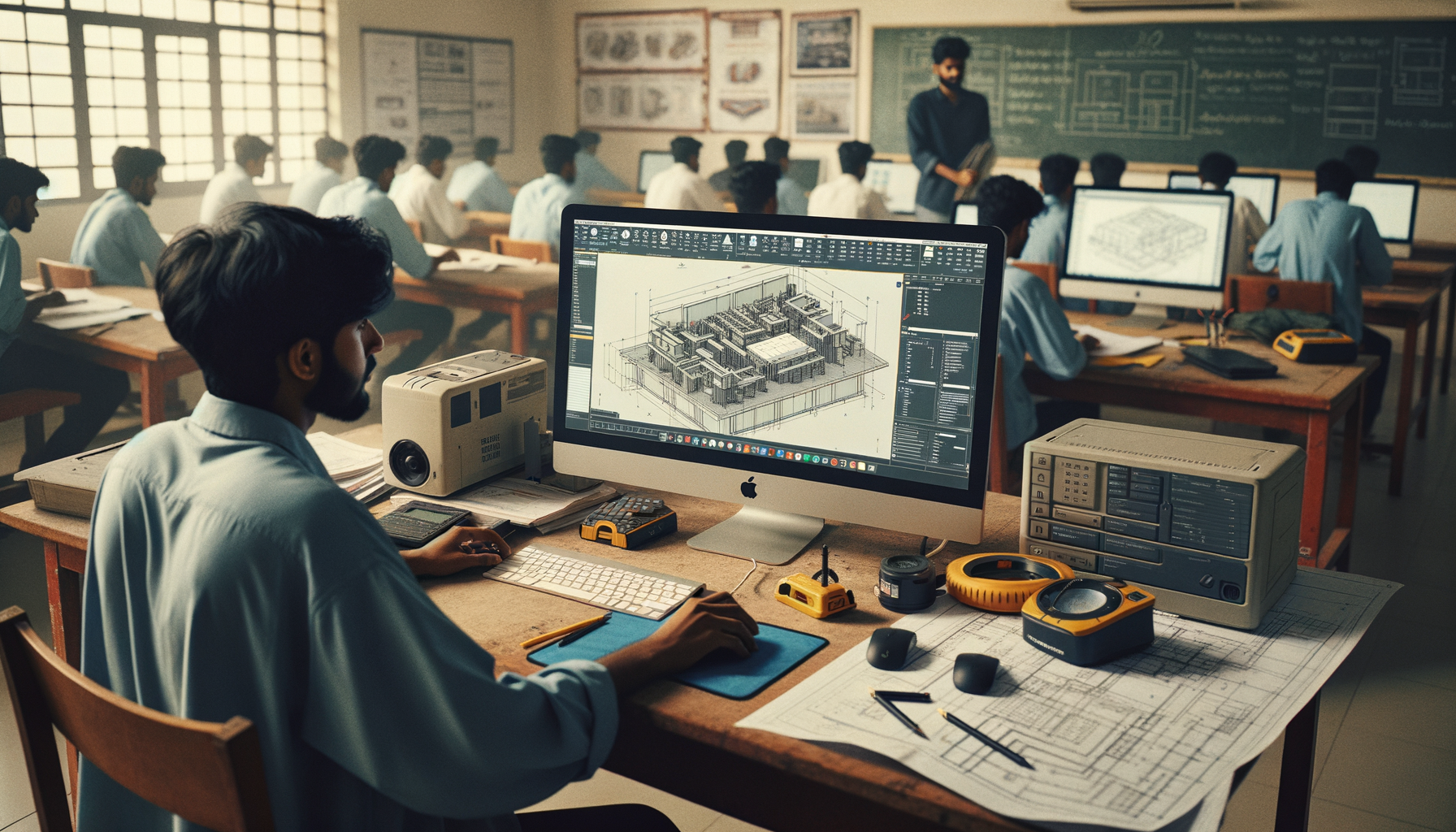
If you already know basic drawing, modify commands, dimensions and layouts, this is where AutoCAD starts becoming a real production tool. Advanced AutoCAD tips and tricks in India 2026 aren't about memorising more commands. They're about speed, accuracy, standardisation and reducing rework when you're handling live drawings for fabrication, architecture, plant layouts or shop-floor revisions. Here's the thing: most students learn AutoCAD enough to pass an assignment, but companies like Tata Technologies, L&T, Bosch and Thermax expect you to work cleanly, quickly and with standards.

The video theme is short, practical AutoCAD learning, and that approach actually matches how professionals improve. Trust me, no one becomes faster in AutoCAD through theory alone. You get better by tightening your workflow, using the right settings from the start and avoiding the small mistakes that keep breaking drawings later.
How do professionals set up AutoCAD drawings before they start?
What most people don't realize is that advanced work begins before the first line is drawn. In AutoCAD 2025 and AutoCAD 2026, your setup decides whether the project stays manageable after 200 edits.
Start with a proper template file. Your DWT should already include text styles, dimension styles, layer standards, plot settings, title block references and units. If you're working in mechanical drafting, keep lineweights and linetypes tied to manufacturing readability. If you're in civil or architectural support, make annotation scales and layout standards fixed from day one.
Use these production habits:
- Set UNITS correctly before importing anything
- Use LIMITS only if your office still follows sheet-space planning habits
- Keep OSNAP clean: endpoint, midpoint, center, intersection, perpendicular and tangent are usually enough
- Turn off unnecessary running snaps that slow cursor response
- Use named page setups so every layout plots identically
- Save workspace preferences for drafting-specific tasks
The good news is, this setup work takes 10 minutes and saves hours later.
Which advanced AutoCAD shortcuts actually save time in real projects?
Not all shortcuts matter equally. Power users don't try to remember 200 aliases. They build a repeatable command pattern. That means keyboard-first drafting for repeated actions and mouse-driven control only where visual judgement matters.
Focus on command chains like these:
- LAYISO + edit + LAYUNISO for clean object isolation
- QSELECT + properties change for batch correction
- MATCHPROP for standardising objects quickly
- OVERKILL to remove duplicate geometry from imported files
- BATTMAN and EATTEXT for block attribute workflows
- XCLIP for controlling heavy external references
- BURST only when block intelligence is no longer needed
- REVCLOUD for issue marking during revision cycles
If you're repeating the same set of actions daily, record them into custom aliases or tool palettes. In many Pune and Chhatrapati Sambhajinagar design offices, speed isn't judged by how flashy you are. It's judged by how few clicks you waste.
How should you manage layers like an industry AutoCAD user?
Layer discipline is where average users and employable users separate. Basic users create layers whenever they feel like it. Advanced users build a naming system that anyone in the office can understand.
A strong layer system should tell you three things immediately: object type, discipline and print behavior. For example, a mechanical team may separate centerlines, hidden lines, dimensions, construction geometry and annotations. An architectural support team may split walls, doors, furniture, text, hatching and services.
Use layer filters for large files. Freeze layers instead of just turning them off when you want performance gains. Lock reference layers so accidental edits don't happen. And don't ignore lineweights. On screen everything may look acceptable, but plotted output is where bad layer logic gets exposed.
At ABC Trainings, we tell students to audit their layer habits early because recruiters don't just open your file to see geometry. They inspect whether you can work inside team standards. That's one reason trainees targeting companies like Mahindra Engineering, Kirloskar or Siemens need more than command knowledge.
How do advanced users work with blocks, attributes and dynamic content?
Blocks are not just for repeating symbols. They're one of the biggest productivity systems in AutoCAD. If you're still copying geometry manually, you're slowing yourself down.
Use standard blocks for fixtures, equipment, fasteners, electrical symbols, title elements and annotation details. Then go one level deeper with attributes. Attributes let you embed data like part number, revision, panel tag, item code or room name. That's useful when extracting schedules or preparing issue sheets.
Dynamic blocks are where things get really efficient. Instead of storing separate blocks for every variation, create one smart block with visibility states, stretch actions, flip parameters and lookup options. For example, one door block can represent multiple sizes. One mechanical symbol block can hold several orientation options.
Here's the thing: dynamic blocks look advanced, but once you understand their logic, they're easier to maintain than dozens of static blocks.
What is the best Xref workflow for large AutoCAD files?
Xrefs are essential once drawings become team-based. Whether you're assembling plant layouts, floor plans or machine assemblies, external references keep files lighter and responsibilities clearer.
Best practice is simple:
- Use relative paths for project portability
- Attach references with a fixed folder structure
- Never explode referenced content into the host file unless absolutely necessary
- Use layer overrides carefully so plotting stays predictable
- Clip only the visible region to improve readability
- Bind files only at final handover if the client requires one consolidated drawing
What most people don't realize is that many drawing corruption issues come from poor Xref hygiene, missing paths and random copied project folders. If you're working across Pune, Sangli and remote teams, file discipline matters as much as drafting skill.
How can you clean imported drawings and reduce errors fast?
Real-world AutoCAD work often starts with messy data from vendors, clients or old projects. Imported files may contain duplicate lines, exploded text, inconsistent scales or strange linetypes. This is where advanced cleanup workflows save you.
Use OVERKILL first for duplicate geometry. Run AUDIT and PURGE to remove junk. Then inspect dimensions, text styles and block definitions before editing anything major. If the file came from a PDF conversion or another CAD package, isolate suspicious geometry and test lengths before trusting it.
For large correction work, QSELECT is your friend. You can filter all text objects, all objects on a wrong layer, all blocks by name or all entities with a specific color. That's much faster than manual selection.
Trust me, employers value this skill. A fresher who can repair a vendor drawing cleanly is often more useful than someone who only knows textbook drafting.
What plotting and layout settings do experienced AutoCAD users follow?
A drawing isn't finished when it looks good in model space. It's finished when it plots correctly without surprises. Advanced users standardise plotting so every PDF, print and issue sheet stays consistent.
Keep model space at full scale. Control sheet output in layouts using viewports. Lock viewport scales once set. Use CTB or STB files according to office standards, but don't mix systems casually. Make sure text height, dimension scale and lineweight hierarchy remain readable on actual sheet sizes like A3 and A1.
Named page setups are one of the most ignored features in AutoCAD. Create them once for PDF, draft print and final issue. Then apply them across layouts. That's how teams working on production drawings at Bajaj Auto or vendor support offices avoid print inconsistencies.
How do AutoCAD skills connect to jobs and salaries in Maharashtra?
If you've only learned basic commands, you'll qualify for trainee-level drafting roles. Once you understand layers, blocks, Xrefs, layout control, cleanup workflows and standards, your value goes up. In Maharashtra, freshers with practical AutoCAD drafting ability typically start around ₹1.8 lakh to ₹3 lakh per year in smaller firms. Candidates with stronger production-level CAD skills can target ₹3.2 lakh to ₹4.8 lakh in Pune, especially in mechanical design support, electrical drafting, fabrication detailing and project documentation roles.
With 2 to 4 years of strong AutoCAD-based project experience, salaries often move to ₹4.5 lakh to ₹7.5 lakh, depending on domain and software stack. Add tools like SolidWorks, Revit, AutoCAD Electrical or Civil 3D, and the growth becomes much better. Companies such as Tata Technologies, KPIT Technologies, Siemens vendors, Thermax support teams and L&T project ecosystems consistently prefer candidates who can work fast with clean standards.
If you want structured advanced practice, ABC Trainings helps students build office-ready drafting habits, not just software familiarity. You can call 8698270088 or WhatsApp 7774002496 to understand the AutoCAD training path based on your branch and job goal.
What should you practice next if you already know the basics?
Don't just redraw sample plans again and again. Build a tougher practice routine. Create one template. Build ten standard layers. Make five dynamic blocks. Attach two Xrefs. Clean one messy imported drawing. Plot the same drawing in two sheet sizes. Extract attribute data into a table. That kind of practice builds confidence for actual work.
The good news is, advanced AutoCAD isn't about being a genius. It's about becoming consistent. Once your workflow becomes cleaner, your speed improves naturally and your drawing quality starts looking like office output, not classroom work.
Which AutoCAD version should Maharashtra students learn in 2026?
AutoCAD 2025 or AutoCAD 2026 is the safest choice because most current offices accept workflows built on recent versions. If your institute or employer uses an older release, don't worry too much because core drafting logic stays similar. Focus more on standards, layouts, blocks and Xrefs than on version-specific hype. Those skills transfer well across versions.
Can I get a job in Pune if I know only AutoCAD deeply?
Yes, but the type of job matters. Pure AutoCAD skills can help you enter drafting, detailing, documentation or support roles in mechanical, architectural and electrical domains. For better salary growth in Pune, pair AutoCAD with one domain tool such as SolidWorks, Revit, AutoCAD Electrical or Civil 3D. That combination usually improves interview chances and long-term growth.
How much salary can an AutoCAD fresher expect in Maharashtra?
Most freshers start between ₹1.8 lakh and ₹3 lakh per year in smaller firms or support roles. If you have project-quality drawings, strong plotting knowledge, proper layer discipline and good interview performance, you may reach ₹3.2 lakh to ₹4.8 lakh in cities like Pune. Domain matters a lot, and mechanical plus manufacturing support often pays better than general drafting roles. Your portfolio can make a real difference.
Where can I learn advanced AutoCAD practically near Chhatrapati Sambhajinagar or Pune?
Look for training that includes real drawing standards, block creation, Xrefs, plotting, revision handling and industry-style assignments. A course that teaches only commands won't prepare you for office work. ABC Trainings offers practical CAD learning for students and job seekers in Maharashtra. You can call 8698270088 or WhatsApp 7774002496 to check the right batch and syllabus.
Visit Our Centers
Chhatrapati Sambhajinagar
Corporate Office (HQ)
2nd Floor, Kandi Towers, Jalna Road, Amarpreet Chowk, Chhatrapati Sambhajinagar, Maharashtra 431001
Osmanpura Branch
Plot No 14, Shanya Sect, Near Sant Eknath Rang Mandir, Osmanpura, Chhatrapati Sambhajinagar, Maharashtra 431005
CIDCO Branch
Plot No 4, N-3, Cidco, Opp. High Court, Chhatrapati Sambhajinagar, Maharashtra 431003
Pune
Wagholi Branch
1st Floor, ABC Trainings, Laxmi Datta Arcade, Pune - Ahilyanagar Hwy, Wagholi, Pune, Maharashtra 412207
Hadapsar Branch
Bloom Hotel, ABC Trainings 1st Floor, S.no 156/3 Shree Tower Pune - Solapur Rd, Hadapsar, Pune, Maharashtra 411028
Sangli
Sangli Branch
2nd Floor, Vasant Market, Opp. City High School, Sangli, Maharashtra 416416
Start Your Career Journey Today
Join 10,000+ students who transformed their careers with ABC Trainings.
💬 WhatsApp: 7774002496📞 Call: 8698270088