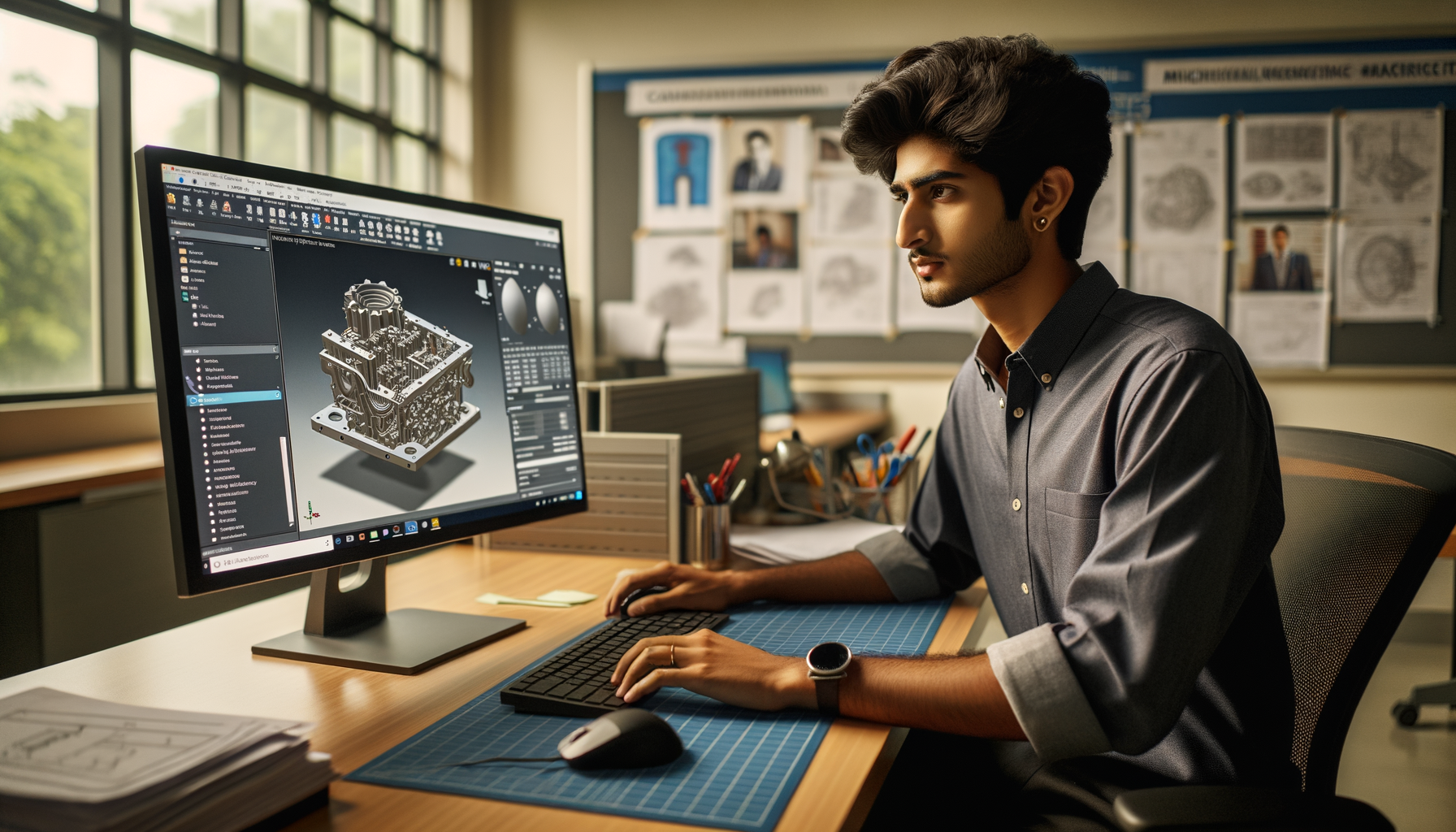
If you already know the basics of SolidWorks, shortcut keys are where your speed really starts showing. SolidWorks shortcut keys aren't just for students trying to save a few clicks. In real design work across Pune, Chhatrapati Sambhajinagar, Sangli, and industrial hubs like Chakan, fast navigation and clean rebuild habits directly affect how quickly you finish parts, assemblies, and drawing updates. Here's the thing: most people learn 4 or 5 shortcuts and stop there. That's not enough if you want to work like a serious CAD designer in 2026.

This guide goes deeper than the usual list. We'll take the core shortcuts mentioned in the video—S, Ctrl + 1/2/3, Spacebar, Ctrl + B, and Alt + Drag—and show you how professionals use them inside actual workflows. Trust me, once you connect shortcuts with modeling strategy, not just memory, your speed can improve by 30% to 40% in a very practical way.
Why do SolidWorks shortcut keys matter in real jobs in India?
When you join a mechanical design team, nobody praises you for clicking through five menus slowly. They expect output. At companies like Bajaj Auto, Tata Technologies, Mahindra Engineering, Bosch, Siemens, Thermax, and Kirloskar, design work often moves under revision pressure. A single part change can trigger assembly checks, drawing updates, BOM review, and manufacturing communication. If your navigation is slow, your thinking gets interrupted.
What most people don't realize is that shortcuts reduce mental load, not just mouse travel. When your hand automatically hits S for common tools or Ctrl + B after a dimension change, you stay focused on design intent. That's the real productivity gain. Freshers in Maharashtra starting around ₹2.8 lakh to ₹4.2 lakh per year are often judged on speed plus accuracy. Skilled SolidWorks users with 2 to 4 years of experience can move into roles paying ₹4.5 lakh to ₹7.5 lakh, especially in Pune and automotive supplier clusters.
How should advanced users set up the S key in SolidWorks?
The S key opens the shortcut toolbar, and if you're still using the default setup, you're leaving time on the table. The good news is, SolidWorks lets you customize this separately for Part, Assembly, Drawing, and Sketch environments. That's exactly how power users work.
In SolidWorks 2024 and SolidWorks 2025, set your S toolbar with commands you use every hour, not commands you use once a day. For example:
- Part mode: Extruded Boss/Base, Extruded Cut, Fillet, Chamfer, Mirror, Linear Pattern, Reference Geometry, Evaluate
- Sketch mode: Smart Dimension, Convert Entities, Offset Entities, Trim, Centerline, Slot, Sketch Picture
- Assembly mode: Mate, Move Component, Pattern Driven Component Pattern, Interference Detection, Exploded View
- Drawing mode: Model Items, Smart Dimension, Center Mark, Hole Callout, Section View, Detail View
Don't overcrowd it. Keep 8 to 12 commands maximum. If your toolbar looks like a full ribbon tab, you've defeated the purpose. A clean S toolbar is faster than menu browsing and helps you stay consistent during internships and live projects.
When should you use Ctrl + 1, 2, 3 and standard views?
Ctrl + 1, Ctrl + 2, and Ctrl + 3 are often taught as basic view shortcuts, but advanced users use them for model verification. Front, back, left, right, top, bottom, and isometric views aren't just for looking around. They're for checking whether your feature strategy is still clean.
Here's a practical workflow. After creating a feature, switch through standard orthographic views to check:
- Was the sketch created on the correct plane?
- Is the extrusion direction matching manufacturing intent?
- Did the mirror or pattern create unwanted geometry?
- Are reference planes and axes placed logically for future edits?
This matters a lot in sheet metal, fixture design, and machined part modeling. If you only inspect in isometric view, you'll miss alignment mistakes. Trust me, many feature failures in assemblies begin with poor orientation checks at part level.
Why is the Spacebar more powerful than most students think?
The Spacebar opens View Orientation, and that's far more useful than just rotating the model. In advanced workflows, it becomes your control center for named views, custom orientation checks, and drawing preparation.
What most people don't realize is that you can save custom views for repetitive design tasks. Suppose you're working on a casting housing, weldment frame, or machine base. You can define a custom orientation that exposes critical mounting faces and internal cut areas. Later, that same orientation helps in drawing view setup and design review.
Use the Spacebar intentionally for these tasks:
- Create named views for recurring inspection angles
- Quickly switch between Normal To and standard orientation
- Prepare cleaner drawing view directions
- Check undercuts, hidden relationships, and face accessibility
In teams handling design reviews for L&T, KPIT Technologies, or vendor development projects, fast visual validation saves time in meetings. A designer who controls orientation well looks confident because the model is always presented clearly.
What is the right way to use Ctrl + B for rebuilds?
Ctrl + B triggers Rebuild, and this shortcut is one of the most underrated habits in SolidWorks. Beginners use it only when they see an error. Advanced users use it proactively after dimensional edits, equation changes, feature suppression, and imported geometry cleanup.
Here's the thing: rebuild discipline is part of professional CAD behavior. If you modify a sketch dimension, then continue adding features without rebuilding, you can carry hidden instability forward. Later the model fails, and you waste 20 minutes finding the real cause.
Use Ctrl + B after:
- Changing base dimensions that affect many downstream features
- Editing equations, design tables, or linked values
- Unsuppressing mirrored or patterned features
- Importing STEP geometry and adding parametric features on top
- Changing configurations before drawing generation
For larger updates, also remember that Ctrl + Q forces a deeper rebuild. The video mentions Ctrl + B, but serious users should know both. Ctrl + B is your frequent safe check. Ctrl + Q is your verification step when something feels off or after major geometry edits.
How do professionals use Alt + Drag for quick copy work?
Alt + Drag is simple on paper: quick copy. But in real workflows, it's a time-saver for repetitive sketch entities, features, and sometimes assembly handling depending on context. If you're still doing copy-paste through menus for every repeated element, you're slowing yourself down.
Inside sketching, Alt + Drag helps when you're creating repeated construction geometry or duplicating similar profile elements before applying relations. In drawings, it can speed up annotation arrangement. In assemblies, quick duplication methods help while testing layout intent before final mating strategy.
The key is this: don't use quick copy blindly. Copy first, then lock design intent using dimensions, geometric relations, or mates. Otherwise you create geometry that looks right but behaves unpredictably later. That's a common fresher mistake in placement tests and company assignments.
Which shortcut workflow actually makes you faster in SolidWorks?
Let's build a realistic workflow you can practice in 20 minutes daily:
- Open a part and hit Spacebar to choose your working orientation.
- Start sketching and use S to call Smart Dimension, Offset, and Trim without chasing tabs.
- Create the base feature and check with Ctrl + 1/2/3.
- Edit dimensions and hit Ctrl + B immediately.
- Duplicate repeatable geometry with Alt + Drag where appropriate.
- Before saving, cycle views again to confirm feature logic and symmetry.
This sounds small, but done consistently, it changes your working rhythm. The good news is you don't need 50 shortcuts. You need 8 to 10 shortcuts used with discipline.
What shortcut habits do Maharashtra recruiters notice during tests?
During CAD tests for internships or junior roles in Pune, Nashik, Aurangabad, and Sangli, evaluators usually notice three things: command confidence, model cleanliness, and recovery from mistakes. Shortcut use affects all three. A candidate who moves smoothly through views, rebuilds at the right time, and accesses commands without hunting looks trained.
At ABC Trainings, we've seen students improve practical test performance once they stop memorizing random commands and start building environment-specific shortcut habits. If you're preparing for SolidWorks roles in automotive, fabrication, product design, or machine design, this is one of the easiest upgrades you can make. For course guidance, call 8698270088 or WhatsApp 7774002496.
If you're already comfortable with sketches, features, and assemblies, don't stay at the beginner level. Shortcut mastery is one of those small things that creates a very visible difference in interviews, internships, and daily office work. ABC Trainings works with students across Maharashtra who want exactly that next-level industry readiness.
Which SolidWorks shortcuts should I master first for job interviews in Pune?
Start with S, Spacebar, Ctrl + 1/2/3, Ctrl + B, and Ctrl + Q. These directly improve navigation, rebuild control, and command access during practical tests. In Pune interviews, recruiters often watch how confidently you move through a model, not just whether the final part is correct. Master these before learning a long list of less useful shortcuts.
Does using shortcut keys really improve SolidWorks speed for freshers?
Yes, it does, especially for repeated tasks like sketching, checking views, and rebuilding after changes. Most freshers waste time opening tabs and searching commands they already know. With regular practice, shortcut use can improve working speed by around 30% in common modeling tasks. That speed matters during internships and timed assessment rounds in Maharashtra companies.
Is Ctrl + B enough, or should I also use Ctrl + Q in SolidWorks?
Ctrl + B is enough for regular rebuild checks after common edits, and you should use it frequently. Ctrl + Q is better when you've made bigger changes, imported geometry, or suspect hidden feature issues. Think of Ctrl + B as your daily check and Ctrl + Q as your deeper verification step. Serious SolidWorks users should know when to use both.
Where can I get advanced SolidWorks training in Maharashtra?
Look for a training institute that teaches actual workflow habits, not just command definitions. You should get practice in parts, assemblies, drawings, shortcut setup, rebuild strategy, and placement-oriented CAD tests. ABC Trainings supports students from Chhatrapati Sambhajinagar, Pune, and Sangli with industry-focused CAD training. You can call 8698270088 or WhatsApp 7774002496 for details.
Visit Our Centers
Chhatrapati Sambhajinagar
Corporate Office (HQ)
2nd Floor, Kandi Towers, Jalna Road, Amarpreet Chowk, Chhatrapati Sambhajinagar, Maharashtra 431001
Osmanpura Branch
Plot No 14, Shanya Sect, Near Sant Eknath Rang Mandir, Osmanpura, Chhatrapati Sambhajinagar, Maharashtra 431005
CIDCO Branch
Plot No 4, N-3, Cidco, Opp. High Court, Chhatrapati Sambhajinagar, Maharashtra 431003
Pune
Wagholi Branch
1st Floor, ABC Trainings, Laxmi Datta Arcade, Pune - Ahilyanagar Hwy, Wagholi, Pune, Maharashtra 412207
Hadapsar Branch
Bloom Hotel, ABC Trainings 1st Floor, S.no 156/3 Shree Tower Pune - Solapur Rd, Hadapsar, Pune, Maharashtra 411028
Sangli
Sangli Branch
2nd Floor, Vasant Market, Opp. City High School, Sangli, Maharashtra 416416
Start Your Career Journey Today
Join 10,000+ students who transformed their careers with ABC Trainings.
💬 WhatsApp: 7774002496📞 Call: 8698270088