
If you already know the basics of AutoCAD, the AutoCAD ALIGN command is one of those tools that can quietly save you hours every week. Most beginners use MOVE, ROTATE, and SCALE separately. Professionals don't. They use ALIGN to position geometry accurately in one go, especially in civil layouts, architectural plans, consultant overlays, and revised site drawings across Pune, Chhatrapati Sambhajinagar, and Sangli. Here's the thing: ALIGN looks simple, but once you understand point strategy, scaling behavior, and how it interacts with blocks, Xrefs, and UCS, your drafting speed changes completely.
The good news is, you don't need complicated 3D knowledge to use it like a power user. If you're working on floor plans, plot boundaries, road centerlines, machine layouts, or scanned reference drawings, this command can clean up your workflow fast. Trust me, this is one of those commands employers notice indirectly because your drawing accuracy improves, your edits become cleaner, and your sheet coordination gets better.
What is the AutoCAD ALIGN command actually used for?
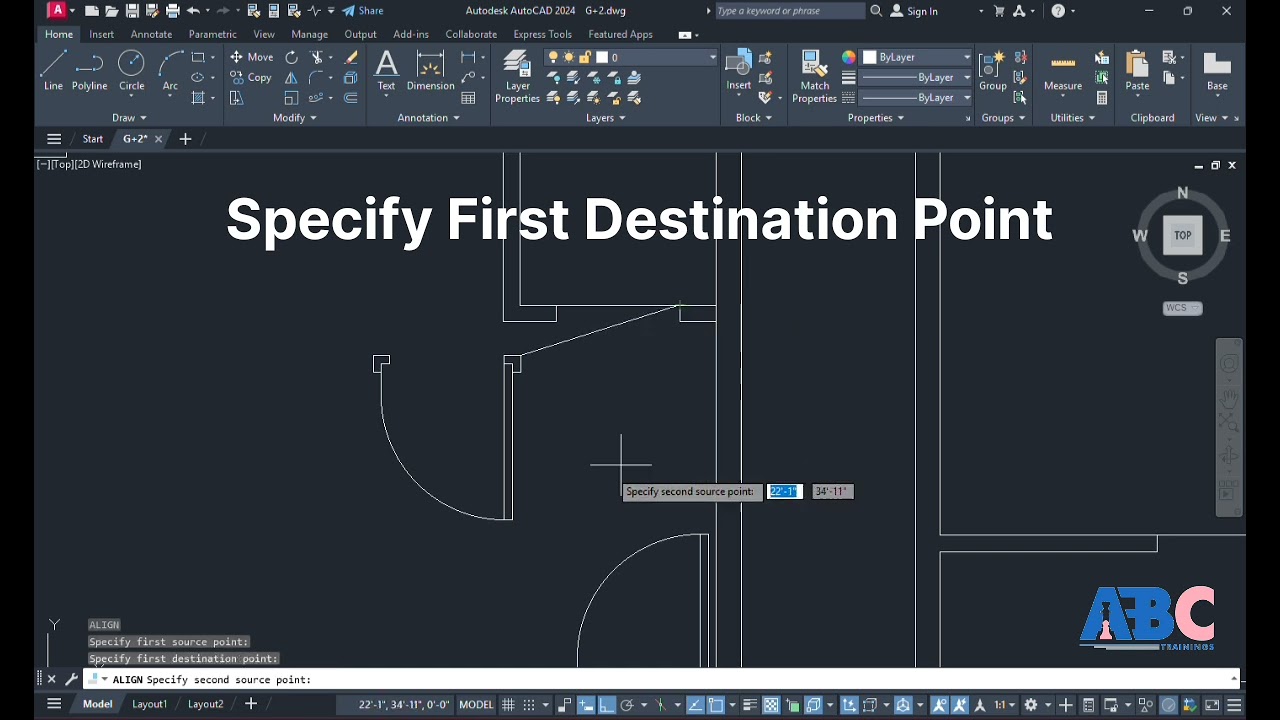
ALIGN lets you move, rotate, and optionally scale selected objects based on source points and destination points. In plain language, you pick the object, define where it is now, define where it should go, and AutoCAD handles the transformation.
What most people don't realize is that ALIGN is not just for “fixing position.” It's ideal when:
- an external consultant sends a drawing at the wrong angle
- a scanned floor plan needs proportional correction
- a block or unit layout must fit a real project reference
- two survey references need matching without manual trial and error
- legacy CAD data has correct shape but wrong orientation and scale
In AutoCAD 2024, 2025, and 2026 workflows, ALIGN remains one of the fastest correction tools for 2D drafting teams.
How do professionals use ALIGN faster than beginners?
Beginners usually click points randomly. Professionals decide point order before starting. That's the difference.
Use the longest reliable reference first
If you're aligning a plan to a site grid, choose the farthest, clearest two points first. Longer reference distance reduces visual error. For example, in a building footprint, use grid intersection A1 and D6 instead of two nearby wall corners.
Turn on the right snaps before you start
Use Endpoint, Intersection, Insertion, and sometimes Geometric Center depending on the object type. Don't keep every Osnap active. Too many snaps slow selection and increase wrong picks.
Know when to answer Yes for scale
When AutoCAD asks whether to scale objects based on alignment points, many users panic. If your source object is the right shape but wrong size relative to the target, choose Yes. If the size is already correct and only position and angle are wrong, choose No.
When should you use ALIGN instead of MOVE, ROTATE, and SCALE?
Use ALIGN when you need all three corrections together. If a consultant's DWG from Tata Technologies or L&T comes in tilted and slightly off-scale, doing separate commands increases the chance of cumulative error.
Use separate commands only when:
- you must control each transformation step independently
- you need a non-uniform review process
- the object should rotate but never scale
- you are testing alternate positions in concept drafting
For production work in firms handling projects for Bajaj Auto, Bosch, Siemens, or Mahindra Engineering, fewer command steps usually means fewer mistakes.
How do you align drawings accurately in civil and architectural projects?
In civil and architectural drafting, ALIGN becomes powerful when used with trusted references.
For floor plans
Align using grid intersections, staircase corners, lift shaft corners, or column center points. Avoid plaster edges or furniture corners because they can vary in revisions.
For site plans
Use plot corner coordinates, road centerline intersections, benchmark references, or compound wall junctions. If the survey base is reliable, align the architectural footprint to it, not the other way around.
For scanned drawings
First attach the image, then identify two or three known dimensions. Use ALIGN with scale enabled. After that, verify using DIST on another independent known dimension. Never trust one successful alignment without a check.
That's a professional habit, and it matters when drawings go to clients or execution teams.
Can you use ALIGN with blocks, Xrefs, and imported consultant drawings?
Yes, and this is where advanced users save serious time.
Blocks
If a block insertion is incorrectly placed or rotated, ALIGN can correct it fast. But be careful with annotated or dynamic blocks. After alignment, check visibility states, attribute positions, and annotation scale behavior.
Xrefs
You can align referenced data, but many teams prefer to keep Xrefs controlled and move host geometry instead. If you align an Xref directly, make sure the coordination team understands the change. In multi-user environments, undocumented alignment changes create confusion.
Imported PDFs or consultant DWGs
This is one of the best use cases. Imported references often come with unit mismatch, angle mismatch, or shifted coordinates. ALIGN fixes all three faster than manual correction, provided you choose dependable matching points.
What settings improve ALIGN command results?
Here are the settings experienced drafters usually check before using ALIGN:
- UNITS: confirm mm, meters, or inches before scaling anything
- OSNAP: keep only relevant snaps active
- UCS: reset or define properly if geometry is not in the expected plane
- LAYER control: lock reference layers you should not disturb
- ORTHO/POLAR: useful for verification, not always during point selection
- VISUAL check: zoom into each source and destination point before clicking
What most people don't realize is that many ALIGN errors are not command errors at all. They're unit setup errors.
How do advanced users avoid common ALIGN mistakes?
Don't align from weak geometry
If your source line is approximate, the final result will also be approximate. Use structural grids, centerlines, or surveyed points whenever possible.
Don't scale without validation
After choosing scale = Yes, always verify at least two extra dimensions. One matching distance is not enough in production drawings.
Don't ignore annotation impact
If dimensions, text, or multileaders are part of the selected set, scaling may affect readability. Sometimes it's smarter to align geometry only and recreate annotation later.
Don't forget block base logic
When blocks look “almost right” after alignment, the problem is often the chosen insertion or reference point, not the command itself.
What is the best workflow for mastering ALIGN like an industry professional?
Here's a practical workflow we teach advanced learners:
- Audit the drawing: units, layers, UCS, and reference reliability.
- Isolate the geometry to be aligned.
- Identify 2 or 3 high-confidence source points.
- Match them with destination points in the same order.
- Decide scale intentionally, not by guesswork.
- Verify with DIST, angle check, and visual overlay.
- Clean up annotation, hatches, and dimensions if needed.
If you're aiming for CAD roles in Pune or Sambhajinagar, this kind of disciplined command workflow matters. Companies working with AutoCAD-based documentation, from local architects to vendor teams supporting Thermax, Kirloskar, Infosys, TCS, and KPIT Technologies, value people who can correct messy drawings quickly without breaking standards.
Is the AutoCAD ALIGN command useful for jobs in Maharashtra?
Absolutely. In real drafting jobs, you won't get perfect files every day. You'll receive revised plans, scanned markups, old consultant drawings, and mismatched references. ALIGN helps you fix those issues fast.
For a fresher in Maharashtra, AutoCAD-focused drafting roles typically start around ₹1.8 lakh to ₹3.2 lakh per year. With stronger command control, layering discipline, plotting accuracy, and project speed, many candidates move toward ₹3.5 lakh to ₹5.5 lakh per year in civil, architectural, MEP, or industrial drafting support roles. Senior CAD coordinators and specialist drafters can go higher depending on software stack and domain.
If you already know basic commands and want deeper command logic, structured practice makes a big difference. ABC Trainings works with students who want job-ready drafting habits, not just command lists. If you want to understand AutoCAD workflows properly, you can call 8698270088 or WhatsApp 7774002496.
Trust me, mastering commands like ALIGN is not about memorizing steps. It's about learning when to trust geometry, when to scale, and how to verify every change like a professional.
Is AutoCAD ALIGN command enough to fix wrong-scale consultant drawings?
It can fix many of them, especially when the drawing is uniformly wrong in position, rotation, and scale. But you must first confirm the file has a consistent scale error, not distorted geometry. In Indian project workflows, always verify multiple known dimensions before issuing corrected drawings. If the imported file is inconsistent, ALIGN alone won't solve it.
Which AutoCAD versions support the ALIGN command well in India?
ALIGN has been available for years and works reliably in commonly used versions like AutoCAD 2022, 2023, 2024, 2025, and 2026. The command logic is familiar across versions, so once you learn it properly, your skill transfers easily. Most Indian firms still care more about your drafting accuracy than the exact version number. Just make sure you understand units, blocks, and annotation behavior in your working version.
Can civil engineers use ALIGN for survey and site layout drawings?
Yes, especially for matching building footprints, road references, boundary lines, and consultant overlays. The key is to use reliable survey-based points, not approximate corners from old drawings. In Maharashtra projects, one wrong alignment can affect dimensions, area calculations, and plotting. That's why post-alignment checking is essential.
Where can I learn advanced AutoCAD commands in Maharashtra?
Look for training that goes beyond basic drawing commands and teaches real project corrections, layering discipline, plotting, blocks, and consultant coordination. If you're in Pune, Chhatrapati Sambhajinagar, or Sangli, ABC Trainings is a practical option for students who want industry-focused AutoCAD learning. Ask specifically whether they cover advanced command workflows like ALIGN, Xref handling, and drawing verification. That makes a real difference during interviews and on the job.
Visit Our Centers
Chhatrapati Sambhajinagar
Corporate Office (HQ)
2nd Floor, Kandi Towers, Jalna Road, Amarpreet Chowk, Chhatrapati Sambhajinagar, Maharashtra 431001
Osmanpura Branch
Plot No 14, Shanya Sect, Near Sant Eknath Rang Mandir, Osmanpura, Chhatrapati Sambhajinagar, Maharashtra 431005
CIDCO Branch
Plot No 4, N-3, Cidco, Opp. High Court, Chhatrapati Sambhajinagar, Maharashtra 431003
Pune
Wagholi Branch
1st Floor, ABC Trainings, Laxmi Datta Arcade, Pune - Ahilyanagar Hwy, Wagholi, Pune, Maharashtra 412207
Hadapsar Branch
Bloom Hotel, ABC Trainings 1st Floor, S.no 156/3 Shree Tower Pune - Solapur Rd, Hadapsar, Pune, Maharashtra 411028
Sangli
Sangli Branch
2nd Floor, Vasant Market, Opp. City High School, Sangli, Maharashtra 416416
Start Your Career Journey Today
Join 10,000+ students who transformed their careers with ABC Trainings.
💬 WhatsApp: 7774002496📞 Call: 8698270088