AutoCAD Boundary Command: How to Isolate and Copy Any Shape from a Complex Drawing (Updated October 2026)
The AutoCAD Boundary command solves one of the most common drafting frustrations: you have a complex drawing with overlapping lines and shapes, and you need to isolate a specific region to copy, move, hatch, or dimension it — without disturbing everything around it. Instead of manually tracing or trimming, the Boundary command creates a new closed polyline or region that exactly matches the boundary of any enclosed area you click inside. This tutorial is grounded in the ABC Trainings AutoCAD Boundary Command video, which demonstrates the technique in Hindi with a practical complex-shape example. Here is exactly what the Boundary command does, why it works the way it does, and how to use it in three steps.
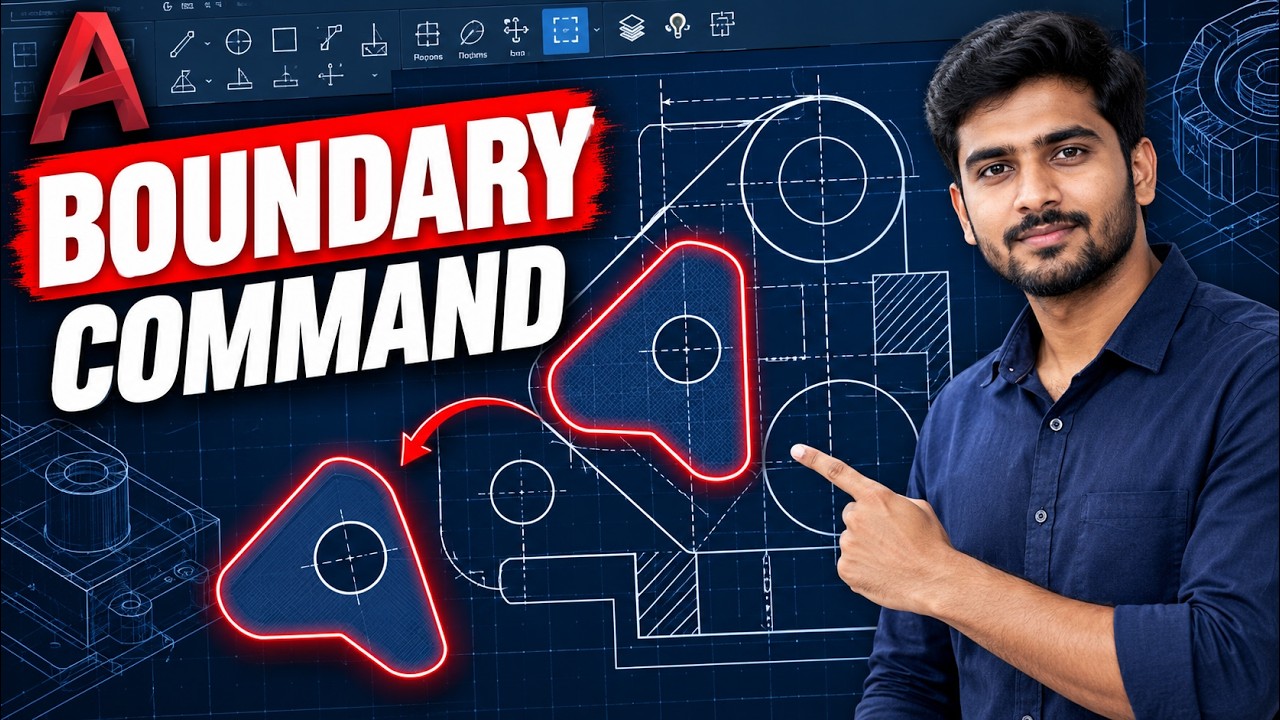
- AutoCAD Boundary command: creates a closed polyline from any enclosed region in your drawing
- Three steps: Draw menu → Boundary → Pick Points → click inside the area → Enter
- The original drawing is unchanged — a new boundary object is created on top
- Select and copy/move the new boundary independently of surrounding geometry
- Works for hatching complex shapes, dimensioning enclosed areas, and isolating building floor plan regions
What the AutoCAD Boundary Command Does — and When to Use It
The AutoCAD Boundary command creates a new closed boundary object — either a polyline or a region — by tracing the edges of any enclosed area you pick inside a drawing. The original geometry is untouched; the command produces a new object sitting exactly on top of the boundary of the area you selected. This is useful when: (1) you want to copy a specific room or floor area out of a complex floor plan; (2) you need to hatch an irregular region that is not a simple shape; (3) you want to dimension an enclosed area independently; (4) you need to isolate a portion of a complex mechanical drawing for a detail view. The command works with any enclosed region formed by intersecting lines, arcs, polylines, or combinations — as long as the boundary is fully closed with no gaps.
AutoCAD Boundary Command Step-by-Step: Three Steps to Extract Any Shape
As demonstrated in the ABC Trainings AutoCAD Boundary Command tutorial video, the technique works in three steps. Step 1: Access the Boundary command. Go to Draw menu (dropdown at the top menu bar) → click Boundary. Alternatively, type BOUNDARY or BO in the command line and press Enter. The Boundary Creation dialog box opens. Step 2: Click Pick Points. Inside the Boundary Creation dialog, click the Pick Points button. Move your cursor inside the enclosed area you want to extract — click once inside it. AutoCAD highlights the detected boundary in green. Press Enter. Step 3: The new boundary is created. A new closed polyline (or region, depending on your Object Type setting) is created exactly matching the area boundary. The original lines remain unchanged. Click the new boundary to select it — it will be selectable as a single object. You can now copy it, move it, array it, or hatch it independently.
| Step | Action | What Happens | Common Issue |
|---|---|---|---|
| 1 | Draw menu → Boundary (or type BO) | Boundary Creation dialog opens | Dialog not visible: check behind other windows |
| 2 | Click Pick Points → click inside area → Enter | AutoCAD traces and highlights boundary | "Cannot determine boundary" = gap in geometry; zoom and close it |
| 3 | Click the new boundary to select it | New closed polyline selectable as one object | Not visible: check current layer is on and not frozen |
| 4 (optional) | Copy/Move/Hatch the boundary | Original drawing unchanged; work on extracted shape | Selected wrong area: Ctrl+Z, zoom in, re-pick |
Boundary Command Options: Polyline vs Region, and How Island Detection Works
The Boundary Creation dialog has two key settings. Object Type: Polyline (default) creates a closed 2D polyline — this is the standard choice for most drafting tasks. Region creates a 2D surface region object — useful for mass properties calculation or 3D extrusion. Island Detection: when On (default), the command detects enclosed areas within the main boundary (islands) and treats them separately. When working with complex shapes that have holes or internal features, island detection correctly handles the inner boundaries. Advanced Boundary Style setting (under Island Display Style in the dialog) lets you control whether interior islands are included in or excluded from the hatching or copy — Outer Only is the most common choice for floor plan work.

Common Problems with the AutoCAD Boundary Command and How to Fix Them
The most common Boundary command failures and their fixes: (1) "Cannot determine the boundary" error — means the selected area has a gap in its boundary. Zoom in to the gap location (AutoCAD highlights it when the command fails) and close it with a short line or by extending endpoints to meet. Even a 0.001-unit gap causes failure. (2) Boundary created but includes wrong area — you clicked inside the wrong enclosed region. Use Ctrl+Z to undo, zoom in closer to the intended area, and try again. (3) Boundary object invisible or on wrong layer — the boundary is created on the current layer. If the current layer is frozen or off, the new object will not be visible. Switch to a visible layer before running the command. (4) Boundary selection extremely slow on large drawings — try running AUDIT and PURGE first to reduce drawing complexity before using Boundary on large files.
AutoCAD Boundary Command in Civil and Architecture Drafting — Real Use Cases
The AutoCAD Boundary command has three high-frequency applications in civil and architecture drafting. Room area calculation: click inside each room on a floor plan → copy the boundary to a separate layer → run AREA command on the closed polyline to get exact room area for area schedule. Site plan isolation: extract a plot or site boundary from a larger cadastral plan to use as a base for a new layout drawing. Hatch application: use Boundary to pre-create the closed region for a complex hatch area before applying the hatch — this is faster than using the Hatch command''s Pick Points directly on very complex drawings. For structural drawings: isolate beam cross-sections or column profiles from a composite structural section to dimension them independently.
Learning AutoCAD in Pune 2026: Courses, Fees & CMYKPY Funding
AutoCAD is the foundation skill for civil engineers, architects, and mechanical draftspersons in Pune. ABC Trainings Wagholi and Hadapsar run AutoCAD 2D+3D programs (2 months, ₹9,440–₹15,000+GST) with a curriculum that covers commands like Boundary, Array, Offset, Trim, Extend, Hatch, Block, and all essential 3D solid modeling tools. Batch formats: weekday (1.5–2 hrs/day) and weekend (3–4 hrs Sat-Sun). Free demo class before enrolment. CMYKPY-empanelled: eligible Maharashtra-domiciled participants (18–35, class 12+) receive ₹6,000–₹10,000/month during training — potentially covering the full AutoCAD course fee. WhatsApp 7774002496 for the current batch date and CMYKPY eligibility check.
Learning AutoCAD in Pune? ABC Trainings Wagholi and Hadapsar are CMYKPY-empanelled — eligible participants (Maharashtra domicile, 18–35, class 12+) receive ₹6,000–₹10,000/month during the 2-month AutoCAD course. At ₹8,000/month × 2 months = ₹16,000, the scheme can cover the full course fee of ₹9,440–₹15,000+GST. Train on AutoCAD 2D+3D including Boundary, Hatch, Block, Xref, and 3D solid modeling while the government pays for it. WhatsApp 7774002496 to check eligibility.Get the AutoCAD Brochure + Fees + Batch Dates on WhatsApp
Free 1:1 counselling. Placement track record. CMYKPY/PMKVY eligibility check.
💬 Get Brochure on WhatsApp📞 Call 7039169629About the author: Komal Chilwar, Civil & BIM Trainer, ABC Trainings.
Visit Our Centers
- Wagholi (Pune): 1st Floor, Laxmi Datta Arcade, Pune-Ahilyanagar Highway. Call 7039169629
- Hadapsar (Pune HQ): 1st Floor, Shree Tower, opp. Vaibhav Theater, Magarpatta. Call 7039169629
- Cidco (Chh. Sambhajinagar): Kalpana Plaza, opp. Eiffel Tower, N-1 Cidco. Call 7039169629
- Osmanpura (Chh. Sambhajinagar): S.S.C Board to Peer Bazar Road, near Jama Masjid. Call 7039169629
- Sangli: Shubham Emphoria, 1st Floor, Above US Polo Assn., Sangli-Miraj Rd, Vishrambag. Weekend batches available. Call 7039169629
FAQs
What does the AutoCAD Boundary command do?
The AutoCAD Boundary command creates a new closed polyline or region object that traces the boundary of any enclosed area you click inside a drawing. The original geometry is untouched. The new boundary object can be selected, copied, moved, hatched, or dimensioned independently. It is used for isolating room areas from floor plans, extracting shapes from complex drawings, pre-creating hatch boundaries, and calculating enclosed areas.
How do I use the Boundary command in AutoCAD step by step?
To use the AutoCAD Boundary command: (1) Go to Draw menu → Boundary (or type BO and press Enter). The Boundary Creation dialog opens. (2) Click the Pick Points button inside the dialog. Move your cursor inside the enclosed area you want to extract. Click once inside the area — AutoCAD highlights the detected boundary. Press Enter. (3) A new closed polyline is created matching the area boundary. Click it to select it as a single object. You can now copy, move, or hatch it independently. The original drawing is unchanged.
Why is the AutoCAD Boundary command giving a "cannot determine boundary" error?
The "cannot determine boundary" error in AutoCAD means the area you clicked inside is not fully closed — there is a gap somewhere in the boundary geometry. AutoCAD highlights the approximate gap location. Zoom in to the gap, close it by extending lines to meet or adding a short connecting line, and run the Boundary command again. Even a 0.001-unit gap causes this error on high-precision drawings. Running AUDIT on the drawing first can help identify and fix geometry errors before using Boundary.
Which AutoCAD course in Pune covers the Boundary command and other advanced 2D commands?
ABC Trainings Wagholi and Hadapsar in Pune offer a 2-month AutoCAD 2D+3D course (₹9,440–₹15,000+GST) that covers Boundary, Array, Offset, Trim, Hatch, Block, Xref, and all essential 2D and 3D commands. CMYKPY-empanelled — eligible Maharashtra-domiciled participants receive ₹6,000–₹10,000/month, potentially covering the full course fee. Free demo class available. WhatsApp 7774002496 for the current batch schedule.