
AutoCAD Linear Dimension vs Aligned Dimension: When to Use Each (Updated October 2026) (Updated October 2026)
If you've spent more than ten minutes in AutoCAD, you've already hit this confusion: you try to dimension an inclined line, you use the Linear Dimension tool, and the number that appears is wrong — it is measuring the horizontal or vertical projection, not the actual line length. Here's the thing: AutoCAD gives you two different dimensioning tools for exactly this reason, and understanding which to use is one of those fundamental skills that separates a draughtsman who produces correct drawings from one who produces drawings that cause problems on the shop floor. NASSCOM-Deloitte's projection of 1.25 million digital engineering roles in India by 2027 includes thousands of AutoCAD-based technical draughting positions in manufacturing and construction — and accurate dimensioning is table-stakes for every one of them.
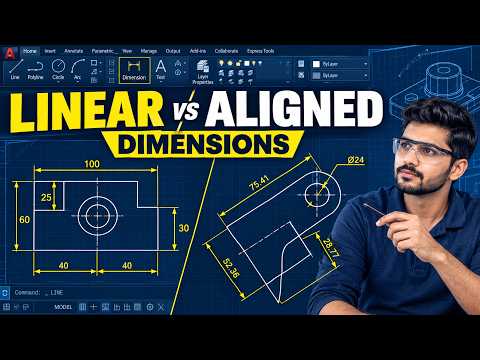
- Linear Dimension (DIMLINEAR) measures only horizontal and vertical distances — use it for lines parallel to X or Y axis
- Aligned Dimension (DIMALIGNED) measures along the actual inclined line length — use it for any diagonal or angled geometry
- In AutoCAD: DIMLINEAR shortcut is DLI; DIMALIGNED shortcut is DAL
- Most mechanical drawings use both: Linear for orthogonal features, Aligned for chamfers, angled brackets, and inclined cuts
Linear Dimension vs Aligned Dimension: The Direct Answer
Linear Dimension (DIMLINEAR / shortcut DLI) measures only horizontal or vertical distances — if you click two points on a diagonal line, AutoCAD shows either the X-component or the Y-component of that line, not its true length. Aligned Dimension (DIMALIGNED / shortcut DAL) aligns itself to the actual angle of the selected line or two points and shows the true length along that angle. The rule is simple: use Linear for anything parallel to the X or Y axis; use Aligned for anything diagonal or at an angle. Using the wrong one produces a dimensionally incorrect drawing — a 45-degree chamfer dimensioned with Linear Dimension shows a shorter number than the actual chamfer length, which misleads the machinist or fabricator reading the drawing.

When to Use DIMLINEAR (Linear Dimension) in AutoCAD
DIMLINEAR is the correct tool when you are dimensioning any feature that runs horizontally or vertically. Common examples in mechanical engineering drawings: overall width and height of a rectangular part, horizontal bolt-hole spacing, vertical plate thickness, depth of a vertical slot. Common examples in architectural and civil drawings: room width, wall height, window sill height from floor. When you activate DIMLINEAR and click two points, AutoCAD asks you whether you want the horizontal or vertical dimension — you control this by moving your mouse: moving left or right locks the dimension to horizontal; moving up or down locks it to vertical. The keyboard shortcut DLI makes this tool fast to access in any drawing workflow. Trust me — mastering the DLI shortcut is one of the small efficiency habits that separates a draughtsman who finishes drawings in 2 hours from one who takes 4.
When to Use DIMALIGNED (Aligned Dimension) in AutoCAD
DIMALIGNED is the correct tool when you are dimensioning any line or feature that runs at an angle to the X or Y axis. Common examples in mechanical drawings: inclined cutting surfaces, chamfers (for example, a 45-degree corner chamfer on a shaft end), diagonal bracing members in a structural drawing, the hypotenuse of a triangular gusset plate, angled slot lengths. Common examples in civil/structural drawings: inclined roof rafters, diagonal truss members, angled retaining wall faces. When you activate DIMALIGNED (shortcut DAL), AutoCAD automatically detects the angle of the selected line and places the dimension parallel to it. The dimension text shows the true line length — exactly what the machinist, welder, or fabricator needs to set up the cut or measurement. What most students do not realise is that DIMALIGNED also works perfectly on horizontal and vertical lines — it just defaults to Aligned instead of locked horizontal/vertical. For horizontal/vertical features, use DIMLINEAR for cleaner, more convention-compliant drawings; reserve DIMALIGNED for angled features.

Step-by-Step: How to Apply Linear and Aligned Dimensions in AutoCAD
Here is the step-by-step workflow for applying both types in a mechanical engineering drawing. For Linear Dimension: type DLI and press Enter; click the first endpoint of the feature; click the second endpoint; move your mouse horizontally (for width) or vertically (for height) to set the dimension line location; click to place it; the dimension value appears automatically. For Aligned Dimension: type DAL and press Enter; click the first endpoint of the inclined line; click the second endpoint; move your mouse away from the line to set the dimension line offset; click to place it; AutoCAD shows the true length of the inclined line. Editing tip: double-click any dimension to open the Properties panel — you can override the text, change the style, or modify the precision. For drawings submitted to L&T, AECOM, or Tier-1 automotive suppliers, dimension precision is typically set to 2 decimal places (0.00mm) in the DIMSTYLE settings — confirm this with your drawing standard before starting.
Common Mistakes Students Make with AutoCAD Dimensioning
The most common mistake beginners make when using AutoCAD dimensions is applying Linear Dimension to inclined geometry and then wondering why the drawing fails a QC check. The second most common mistake is applying too many dimensions — every feature does not need to be dimensioned; draw to the ISO/BIS standard for the drawing type, and only dimension what the manufacturer needs to make the part correctly. The third mistake is inconsistent dimension style: mixing millimetres and inches, mixing decimal and fraction notation, or using different text heights in the same drawing. AutoCAD's DIMSTYLE command lets you set a single standard and then all dimensions in the session follow it automatically — always set up DIMSTYLE before starting any production drawing. For AutoCAD students at ABC Trainings, the standard practice from Day 1 is to set DIMSTYLE to the course's Indian Standards template, which follows BIS conventions for mechanical and civil drawings.
AutoCAD Dimensioning for Engineering Drawings: Best Practices for 2026
For engineering drawings submitted for production or construction in India, the correct practice is: use ISO 128 conventions for dimensioning, which AutoCAD's built-in ISO-25 and ISO-50 dimension styles approximate; set DIMDEC (decimal places) to match the required tolerance — 0.00mm for most mechanical features, 1mm or 5mm for structural/civil; use DIMBASELINE and DIMCONTINUE for ordinate dimensioning on drawings with many parallel features; avoid overlapping dimension lines by using the DIMSPACE command to equalise spacing. Placing dimensions: always place dimensions outside the drawing outline when possible; leader lines (MULTILEADER, shortcut MLD) are used for notes pointing to a specific feature. These are the practices that distinguish a drawing that passes a Tier-1 automotive supplier's drawing review from one that does not. Real companies in Pune — Bajaj Auto Akurdi (164+ openings), Bosch MIDC Pimpri, Mahindra Chakan — use these standards when evaluating drawing quality in technical interviews.
AutoCAD Dimensions in Your Career: What Employers in Pune Test For
In AutoCAD CAD designer interviews at Pune-area employers, dimension accuracy questions are standard screening tests. Interviewers at Bajaj Auto Akurdi, Tata Motors Ranjangaon, and Mercedes-Benz India Viman Nagar commonly ask: "Dimension this part drawing" — and they observe whether you use Linear for orthogonal features and Aligned for inclined ones correctly. Getting this wrong in a live interview test is a red flag that signals incomplete training. The good news is that this skill takes one session to master correctly. ABC Trainings' AI Powered Product Design, Analysis and Simulation course covers AutoCAD 2D and 3D including complete dimensioning standards — DIMLINEAR, DIMALIGNED, DIMANGULAR, DIMRADIUS, DIMDIAMETER, ordinate dimensioning, and GD&T basics — across its Pune (Wagholi, Hadapsar) and Sambhajinagar (Cidco, Osmanpura) centres. CMYKPY government stipend Rs 6,000–10,000/month available for eligible Maharashtra students. Call 7039169629 or WhatsApp 7774002496 for the next batch.
CMYKPY scheme provides Rs 6,000–10,000/month to Maharashtra students enrolled in AutoCAD courses at approved centres. ABC Trainings AI Powered Product Design course is CMYKPY eligible — call 7039169629 to check eligibility and start your batch.Get the AutoCAD Brochure + Fees + Batch Dates on WhatsApp
Free 1:1 counselling. Placement track record. CMYKPY/PMKVY eligibility check.
💬 Get Brochure on WhatsApp📞 Call 7039169629About the author: Shubham Choundiye, Mechanical Design Trainer, ABC Trainings. Shubham Choundiye is a Mechanical Design Trainer at ABC Trainings, specialising in AutoCAD 2D and 3D, SolidWorks, CATIA, and design for manufacturing. He trains mechanical engineering students at ABC Trainings Pune and Sambhajinagar centres..
Visit Our Centers
- Wagholi (Pune): 1st Floor, Laxmi Datta Arcade, Pune-Ahilyanagar Highway. Call 7039169629
- Hadapsar (Pune HQ): 1st Floor, Shree Tower, opp. Vaibhav Theater, Magarpatta. Call 7039169629
- Cidco (Chh. Sambhajinagar): Kalpana Plaza, opp. Eiffel Tower, N-1 Cidco. Call 7039169629
- Osmanpura (Chh. Sambhajinagar): S.S.C Board to Peer Bazar Road, near Jama Masjid. Call 7039169629
- Sangli: Shubham Emphoria, 1st Floor, Above US Polo Assn., Sangli-Miraj Rd, Vishrambag. Weekend batches available. Call 7039169629
FAQs
What is the difference between Linear Dimension and Aligned Dimension in AutoCAD?
Linear Dimension (DIMLINEAR) measures only horizontal or vertical distances — it always shows the X-projection or Y-projection of the selected geometry, not the true length of a diagonal line. Aligned Dimension (DIMALIGNED) aligns itself to the angle of the selected line and shows its actual length. Use DIMLINEAR for all features parallel to the X or Y axis; use DIMALIGNED for any inclined, diagonal, or angled feature. Using Linear Dimension on an inclined line produces a dimensionally incorrect drawing that will cause problems during manufacturing or construction.
When should I use Aligned Dimension instead of Linear Dimension in AutoCAD?
Use Aligned Dimension (DIMALIGNED) whenever you are dimensioning any line or feature that runs at an angle to the horizontal or vertical — chamfers, inclined cuts, diagonal bracing, angled slots, roof rafters, inclined wall faces. A chamfer on a shaft, a diagonal stiffener in a bracket, the hypotenuse of a triangular gusset — all of these require DIMALIGNED to show the correct true length. If you use DIMLINEAR on these features, you will get the wrong measurement (the horizontal or vertical projection only), which will mislead anyone who reads your drawing.
What is the shortcut for Aligned Dimension in AutoCAD?
The keyboard shortcut for Aligned Dimension in AutoCAD is DAL (type DAL at the command prompt and press Enter). The shortcut for Linear Dimension is DLI. Memorising both shortcuts speeds up your dimensioning workflow significantly: DLI for horizontal/vertical, DAL for inclined. You can also access both from the Annotate tab in AutoCAD's ribbon — under the Dimensions panel.
Which AutoCAD dimensioning tool is used for inclined lines in engineering drawings?
Aligned Dimension (DIMALIGNED, shortcut DAL) is the correct tool for inclined lines in engineering drawings. DIMALIGNED measures the true length of the line along its actual angle, which is what the machinist, fabricator, or site engineer needs. Linear Dimension (DIMLINEAR) is incorrect for inclined lines — it shows only the horizontal or vertical projection of the line, which is shorter than the actual line length and will cause manufacturing or construction errors.