AI Has Transformed Web Design
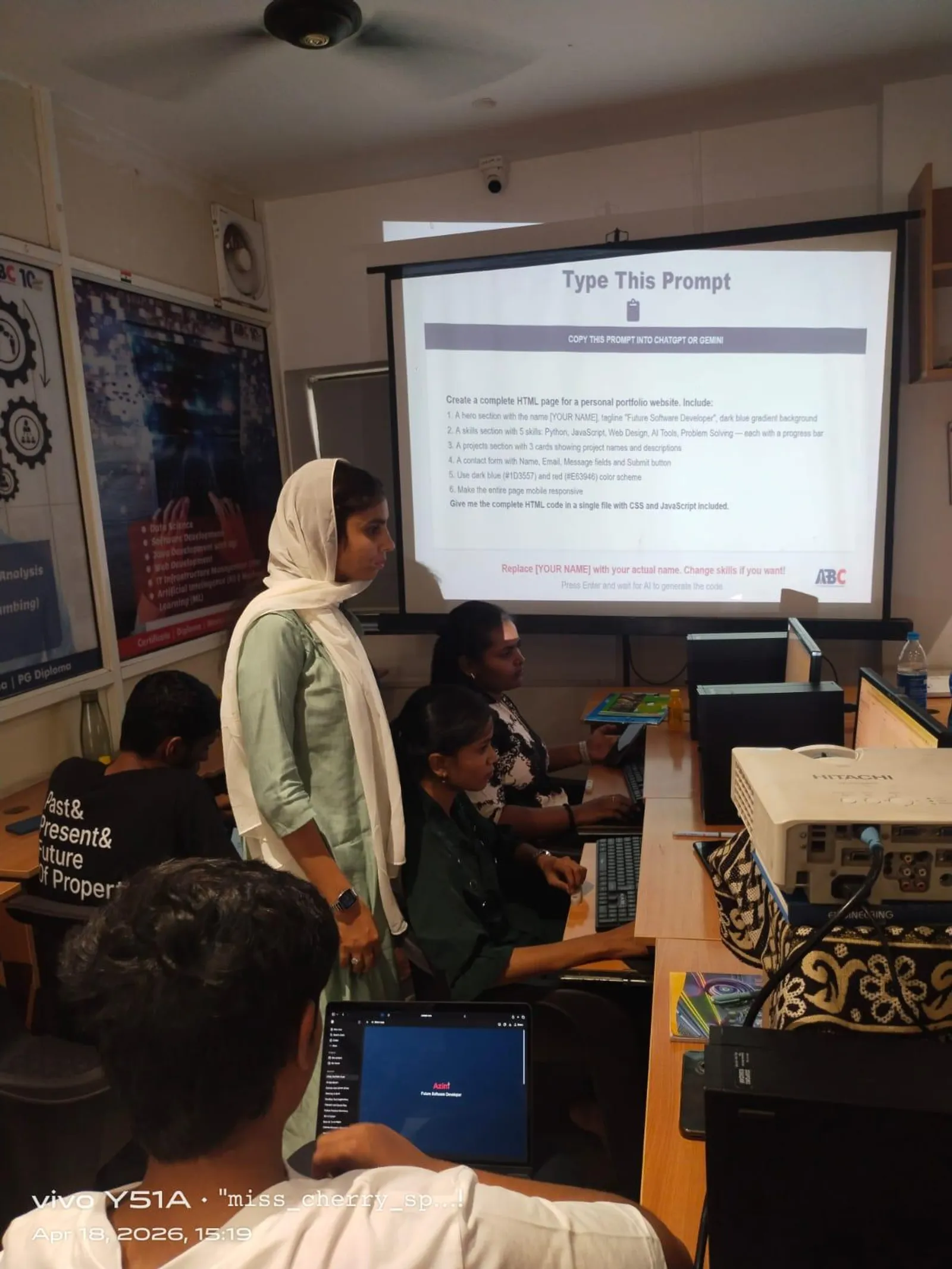
In 2026, you do not need Photoshop skills or a design degree to create professional websites. AI tools generate layouts, images, icons, and complete designs from text descriptions. Every tool listed here is free.
AI Design Tools
Google Stitch (free, 350 generations/month) converts text prompts to UI designs. Figma AI (free, 3 projects) adds AI features to the industry-standard design tool. Canva AI (free) generates social media graphics, presentations, and marketing materials. v0.dev (free $5 credit) generates polished React components.
AI Image Generation
Microsoft Designer (free, DALL-E powered) generates website banners and hero images. Leonardo AI (free, 150 daily tokens) produces higher quality images. Ideogram (free, 10/day) generates images with readable text — great for banners. CapCut AI (free) handles video editing with AI.
AI Content Writing
ChatGPT and Claude (both free tiers) generate headlines, about pages, product descriptions, blog content, and SEO meta tags. Google Gemini (free) excels at research and longer content pieces.
AI Website Builders
Bolt.new (free, 40 prompts/month) generates complete websites in seconds. Lovable (free, limited) builds full-stack apps from descriptions. Replit (free, 1 app) provides complete development environment.
Are these tools really free?
Yes. All have genuine free tiers with no credit card required. Sufficient for learning and portfolio projects.
Which tool should I start with?
Google Stitch for design exploration, Bolt.new for building, Microsoft Designer for images.
Learn at ABC CAD and IT Trainings
ABC CAD and IT Trainings offers comprehensive courses across five centres in Maharashtra — Osmanpura, CIDCO, Wagholi, Hadapsar, and Sangli. With 11 years of training excellence and over 2000 students trained, we provide hands-on, industry-relevant education using 100 percent free tools. Visit abctrainings.in or call to enrol today.
Related Articles
- What is Vibe Coding? Complete Guide 2026
- Best Free Vibe Coding Tools 2026
- Prompt Engineering for Vibe Coding
- Cursor AI Tutorial for Beginners
- Vibe Coding Course in Pune and Aurangabad
Get Brochure + Fees + Batch Dates on WhatsApp
Free 1:1 counselling. Placement track record. CMYKPY/PMKVY eligibility check.
💬 WhatsApp 7774002496📞 Call 7039169629Visit Our Centers
- Wagholi (Pune): 1st Floor, Laxmi Datta Arcade, Pune-Ahilyanagar Highway. Call 7039169629
- Hadapsar (Pune HQ): 1st Floor, Shree Tower, opp. Vaibhav Theater, near Bloom Hotel, Magarpatta. Call 7039169629
- Cidco (Chh. Sambhajinagar): Kalpana Plaza, opp. Eiffel Tower, N-1 Cidco. Call 7039169629
- Osmanpura (Chh. Sambhajinagar): S.S.C Board to Peer Bazar Road, near Jama Masjid. Call 7039169629
- Sangli: Shubham Emphoria, 1st Floor, Above US Polo Assn., Sangli-Miraj Rd, Vishrambag. Weekend batches available. Call 7039169629
Free AI Web Design Tools Compared
Use this table to pick the right tool for the job instead of opening all of them at once.
| Tool | What it does | Best suited for | Free access noted in this guide | What to watch for |
|---|---|---|---|---|
| Google Stitch | Turns text prompts into UI designs | Exploring screen layouts before you build anything | Free, 350 generations per month | Treat the result as a first draft — check spacing and how it behaves on a narrow screen yourself |
| Figma AI | Adds AI features inside Figma, the industry-standard design tool | Refining a design by hand and sharing it with others | Free, 3 projects | With only three projects on the free tier, keep one file per real project instead of one per experiment |
| Canva AI | Generates social media graphics, presentations and marketing material | Supporting graphics around a site — banners, posts, decks | Free | Popular templates look alike; change colours, type and images so your work is not identical to someone else's |
| v0.dev | Generates polished React components | Developers who already work in React and want a head start | Free $5 credit | You get code, not a finished website — you still need a project to run it in |
| Microsoft Designer | DALL-E powered image generation for banners and hero images | Quick hero images and page banners | Free | Inspect faces, hands and any lettering in the image before you publish it |
| Leonardo AI | Image generation with higher output quality | Images where visual quality matters more than speed | Free, 150 daily tokens | Tokens are a daily allowance, so heavy re-rolling can finish your day's quota early |
| Ideogram | Generates images with readable text | Banners, posters and anything where words sit inside the image | Free, 10 per day | Still proofread the words in the picture — you cannot fix a typo with a text editor later |
| Bolt.new | Generates complete websites from a description | Getting a working site up fast to test an idea | Free, 40 prompts per month | Every small fix spends a prompt, so write one full brief rather than a dozen tiny corrections |
Key Takeaways
- Every tool covered here has a genuine free tier that needs no credit card, which is enough for learning and portfolio work.
- The tools split into four jobs: designing layouts, generating images, writing content, and building the actual site. Pick by job, not by popularity.
- A sensible starting set is Google Stitch for design exploration, Bolt.new for building and Microsoft Designer for images.
- Free tiers are metered differently — Leonardo AI and Ideogram reset daily, while Google Stitch and Bolt.new work on a monthly count — so plan your work around the limit you are actually facing.
- AI gives you a draft, not a finished website. Layout checks, mobile behaviour, image quality and factual accuracy in the copy are still your job.
How to Choose Between These Tools
The fastest way to waste a free tier is to open five tools and try all of them on the same task. Work backwards from the output you actually need instead.
Start by naming the deliverable. If you need a picture of what the page will look like, that is a design tool — Google Stitch or Figma AI. If you need a working page in a browser, that is a website builder — Bolt.new, Lovable or Replit. If you need a hero image, that is an image generator. Mixing these up is why people say AI tools do not work: they ask a layout tool for a live website, or an image tool for a page structure.
Then check three things before you commit. First, is the output editable? A design you can open and adjust in Figma is worth more than a picture of a design you cannot change. Second, how does the free tier meter you? Leonardo AI and Ideogram give you a daily allowance, so you can come back tomorrow. Google Stitch and Bolt.new count by the month, so an afternoon of careless prompting can cost you the rest of the month. Third, read the tool's own terms before you use anything commercially. Free for learning and free for a paying client's website are not always the same permission, and only the tool's terms page can tell you which one you have.
One more practical filter: pick tools that hand off to each other. Images from an image generator should land in the design tool; text from a writing assistant should land in the builder. If a tool traps its output where nothing else can reach it, it will slow you down no matter how good the result looks.
A Practical Workflow From Prompt to Published Page
Here is an order of work that keeps quota spend low and avoids redoing the same page three times.
- Write the brief before you open any tool. One paragraph: who the page is for, what you want the visitor to do, and the sections in order — for example hero, services, proof, contact. This paragraph becomes the core of every prompt you write afterwards.
- Settle the structure first. Generate the layout in Google Stitch or work it up in Figma AI. Decide the section order here, while changes are cheap.
- Write the words next, not last. Use ChatGPT, Claude or Google Gemini for headlines, the about page and product descriptions. Real copy changes how much room each section needs, so writing it before you build saves a rebuild.
- Generate images to fit the space you already have. Once the layout exists you know whether you need a wide banner or a square card. Microsoft Designer and Leonardo AI cover general imagery; use Ideogram when words must appear inside the image.
- Build once, with everything ready. Give Bolt.new or Lovable the brief, the section order and the final copy in a single prompt. This is where the 40-prompt monthly limit bites hardest, so arrive prepared.
- Check it in a browser at phone width before you call it finished, and fix in small, specific prompts rather than regenerating the whole site.
Writing Prompts That Produce Usable Designs
The gap between a generic AI layout and a good one is almost always the prompt. Vague inputs produce the same purple-gradient page everybody else gets.
Name six things in every design prompt: the page type, the audience, the sections in order, the tone, the colour direction, and the device you care about most. "Landing page for a Pune bakery, warm cream and brown, sections: hero with photo, six products, customer reviews, map and phone, mobile first" gives the tool something to work with. "Make me a nice bakery website" does not.
After the first generation, change one thing at a time. If you rewrite the whole prompt you cannot tell which word improved the result, and on a metered free tier you pay for that confusion. Keep your working prompts in a text file — a prompt that produced a good hero section will produce another one next month, and rebuilding it from memory costs generations you did not need to spend.
For image prompts, describe subject, setting, lighting and framing, and say what you do not want. For content prompts, give the assistant real facts to work from — your services, your city, your actual timings. An assistant with nothing to work from will invent plausible-sounding detail, and you will publish it.
Quality Checks Before You Publish
AI output looks finished long before it is. Run through this list on every page.
- Narrow screens. Open the page on a phone, or drag the browser window narrow. Check that nothing overflows sideways and that buttons are big enough to tap.
- Contrast and readability. Pale grey text on white looks elegant on a laptop indoors and disappears on a phone outdoors.
- Text inside images. Zoom in on every generated graphic and read the lettering. Misspelled words baked into an image cannot be corrected later without regenerating.
- Image weight. Generated images are often far larger than a web page needs. Resize them to the size they actually display at, or the page will feel slow.
- Alt text. Write a short description for every meaningful image. It helps people using screen readers and it helps search engines understand the page.
- Facts in the copy. Check every name, number, address and claim the AI wrote. Anything you cannot verify should come out.
- Placeholders. Search the page for leftover sample text, dummy links and stock names before it goes live.
- Your own copy of the work. Export or download the files. A free account is not a backup.