How to Run Your First FEA Analysis in ANSYS Workbench: Step-by-Step (Updated May 2026)
Are you new to ANSYS Workbench? Here's the thing — most mechanical engineering students hear about FEA and simulation in third year but nobody actually walks them through the software from scratch. ANSYS Workbench is your gateway to engineering simulation: structural analysis, thermal analysis, fatigue, and fluid dynamics, all in one environment. With manufacturing investments in India exceeding ₹71,343 crore in the AURIC zone alone and companies like Tata Technologies, KPIT, and Mahindra Research Valley actively hiring CAE engineers, simulation skills are no longer optional for serious mechanical engineers. This guide takes you through your first real FEA run — start to finish.
- ANSYS Workbench FEA workflow: Geometry → Mesh → Setup → Solve → Post-process
- Static Structural analysis gives you stress (von Mises), deformation, and factor of safety
- Meshing quality is the #1 determinant of result accuracy — refine at stress concentrations
- Freshers with ANSYS FEA skills earn ₹3–5 LPA; senior simulation engineers earn ₹8–15 LPA
- ABC Trainings ANSYS module covers Static Structural, Thermal, and Modal analyses with projects
What ANSYS Workbench Does and Why Mechanical Engineers Need It
ANSYS Workbench integrates multiple simulation tools under one platform. The core modules: Static Structural (stress, deformation under loads), Steady-State Thermal (heat transfer, temperature distribution), Modal Analysis (natural frequencies, vibration modes), and Fatigue (component life under cyclic loading). Fluent handles CFD. In industry, ANSYS is the standard at Tata Technologies for crash simulation, KPIT for powertrain thermal analysis, and Mahindra Research Valley for chassis FEA. Trust me — even basic ANSYS proficiency separates your CV from 80% of mechanical engineering graduates applying for the same roles.
Setting Up Your ANSYS Workbench Project: Interface Walkthrough
When you open ANSYS Workbench, you see the Project Schematic — a drag-and-drop canvas where you add Analysis Systems. Each system (e.g., Static Structural) has sequential cells: Geometry, Model, Setup, Solution, Results. You work through these left to right. Double-clicking Geometry opens SpaceClaim or DesignModeler for CAD. Double-clicking Setup (or Model) opens Mechanical — the main solver environment. Inside Mechanical, the Outline Tree on the left shows: Geometry (imported parts), Connections (contacts, joints), Mesh, Analysis Settings, Loads and Supports (boundary conditions), and Solution. The graphics window shows your model in 3D.
Step 1–3: Geometry, Material, and Meshing Your Model
Step 1 — Geometry: Import your SolidWorks or CATIA file via File → Import, or create geometry in SpaceClaim. Simplify the model: suppress small holes, chamfers, and decorative features that don't affect structural behavior. Step 2 — Material: In Mechanical, right-click Geometry → Insert → Material Assignment. ANSYS includes Structural Steel by default (Young's Modulus: 200 GPa, Poisson's Ratio: 0.3). Add custom materials from the Engineering Data workspace. Step 3 — Mesh: Right-click Mesh → Generate Mesh. Start with automatic meshing. Then add a Mesh Refinement on faces or edges where you expect stress concentrations (fillets, holes, contact zones). Check Mesh Metrics: Element Quality above 0.7 is good.
| FEA Step | Action | Common Mistake |
|---|---|---|
| Geometry | Import & simplify model | Leaving in small fillets that cause mesh failures |
| Mesh | Generate & refine at stress zones | Using coarse mesh everywhere — inaccurate peaks |
| Boundary Conditions | Apply supports and loads | Forgetting a fixed support — model flies in space |
| Post-Processing | Read von Mises, deformation, FoS | Misreading units (MPa vs Pa) |
Step 4–5: Applying Boundary Conditions, Solving, and Post-Processing
Step 4 — Boundary Conditions: Under Static Structural, right-click to Insert → Fixed Support (select faces that are bolted or welded). Add Force or Pressure (select faces where load is applied, enter magnitude and direction). For thermal: apply Convection, Heat Flux, or Temperature. Step 5 — Solve: Click Solve (or the yellow lightning bolt). Monitor the Solution Information window for convergence warnings. Most static analyses solve in 1–5 minutes on a laptop. If it fails: check that all faces have materials assigned, check for free-floating geometry, and verify units are consistent (mm-tonne-N or m-kg-N).
Reading ANSYS Results: Von Mises Stress, Deformation, and Factor of Safety
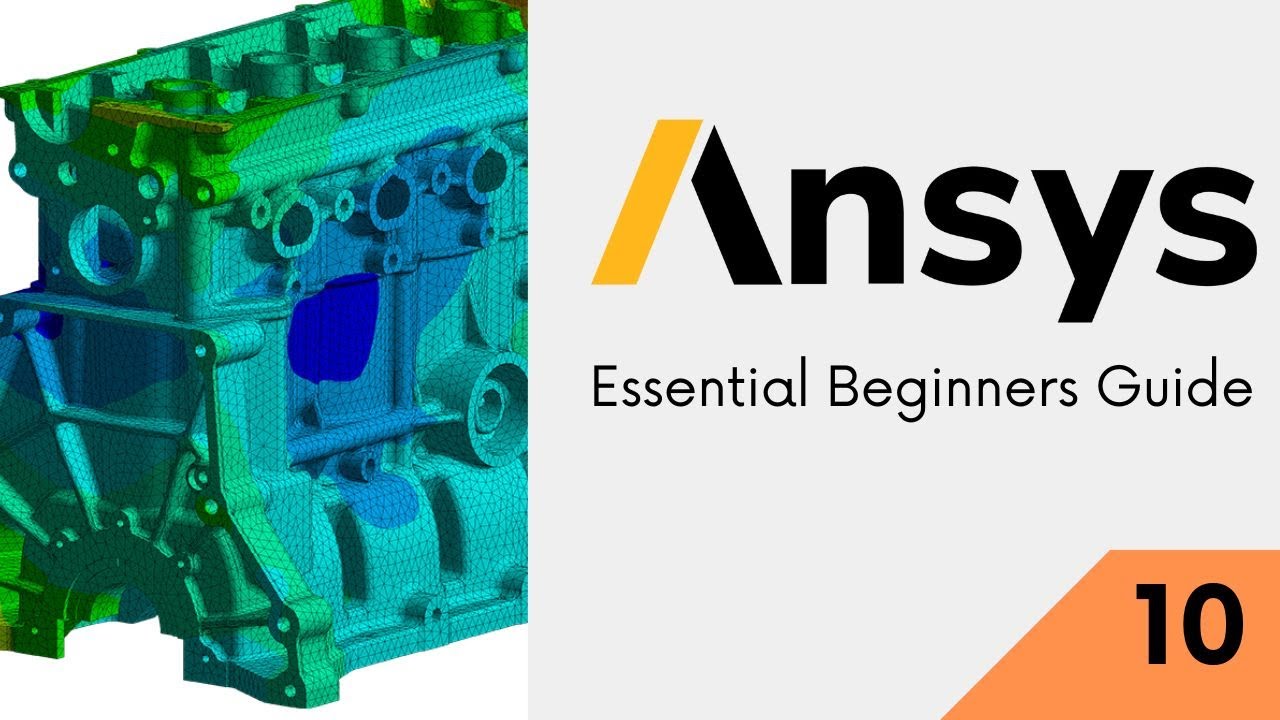
After solving, click Solution to insert result objects. Total Deformation: the maximum displacement of any point on your model in mm. Equivalent (von Mises) Stress: the single most important stress measure for ductile materials (steel, aluminum). Compare the maximum von Mises stress against your material's yield strength (250 MPa for structural steel). Factor of Safety = Yield Strength ÷ Maximum von Mises Stress — a value above 2.0 is generally acceptable for static loads. Use Probe to extract stress or deformation at a specific point. Use Animation to visualize how the part deforms. Export results via Solution → Insert → Report for a PDF summary of your simulation.
Get the CAD/CAM Training Brochure + Fees + Batch Dates on WhatsApp
Free 1:1 counselling. Placement track record. CMYKPY/PMKVY eligibility check.
💬 Get Brochure on WhatsApp📞 Call 7039169629About the author: Shubham Choundiye, Mechanical Design Trainer, ABC Trainings.
Visit Our Centers
- Wagholi (Pune): 1st Floor, Laxmi Datta Arcade, Pune-Ahilyanagar Highway. Call 7039169629
- Hadapsar (Pune HQ): 1st Floor, Shree Tower, opp. Vaibhav Theater, Magarpatta. Call 7039169629
- Cidco (Chh. Sambhajinagar): Kalpana Plaza, opp. Eiffel Tower, N-1 Cidco. Call 7039169629
- Osmanpura (Chh. Sambhajinagar): S.S.C Board to Peer Bazar Road, near Jama Masjid. Call 7039169629
- Sangli: Shubham Emphoria, 1st Floor, Above US Polo Assn., Sangli-Miraj Rd, Vishrambag. Weekend batches available. Call 7039169629
FAQs
What computer specs do I need to run ANSYS Workbench?
ANSYS Workbench minimum requirements: 64-bit processor (Intel Core i5 or above recommended), 16 GB RAM (8 GB minimum), dedicated GPU with 2 GB VRAM, and 60 GB free SSD space. For student use with small-to-medium models (under 500,000 elements), a modern i5/i7 laptop with 16 GB RAM runs most analyses smoothly. ANSYS provides a student license free for academic projects with a 32,000-node limit.
Can a mechanical engineering fresher get a job with just ANSYS skills?
Yes, but ANSYS alone is rarely enough — pair it with SolidWorks or CATIA (for the geometry) and basic engineering domain knowledge (material properties, loading scenarios). Most CAE job descriptions for freshers ask for: ANSYS Workbench (Static Structural minimum), understanding of FEA theory (mesh convergence, boundary conditions), and 1–2 industry simulation projects in your portfolio. Companies like KPIT, Tata Technologies, and EDAG India hire freshers with this combination.
How is ANSYS Workbench different from ANSYS APDL?
ANSYS APDL (Parametric Design Language) is the older command-line interface for ANSYS — powerful but complex, requiring scripted input for every operation. ANSYS Workbench is the modern GUI-based platform that wraps APDL (and newer solvers) in a visual workflow. For industrial simulation jobs in India, Workbench is the standard — APDL is mainly used in research and advanced customization scenarios.
Where can I learn ANSYS Workbench in Pune or Sambhajinagar?
ABC Trainings Hadapsar (Pune HQ) and Wagholi centres run ANSYS Workbench modules covering Static Structural, Thermal, Modal, and Fatigue analyses. For Sambhajinagar students, the Cidco and Osmanpura centres can coordinate ANSYS modules on request. Call 7039169629 or WhatsApp 7774002496 for the next batch date and fees.