Revit Keyboard Shortcuts and Productivity Cheat Sheet for Pune BIM Beginners 2026 (Updated June 2026)
In Revit, the gap between a fluent modeller and a slow one comes down largely to how often they reach for the mouse. Pune AEC firms measure productivity in models delivered, so building shortcut fluency early is one of the fastest ways to look and work like an experienced engineer. This cheat sheet gives you the essential shortcuts grouped by function, shows you how to customise your own, and lays out a two-week plan to make them muscle memory.
- Most Revit shortcuts are simple two-letter sequences typed in the drawing area, no Enter needed
- Master the nine modify shortcuts first (MV, CO, RO, MM, AL, TR, OF, AR, DE), then annotation, view and snaps
- Customise shortcuts under File, Options, User Interface and export the file to carry your setup between machines
- Pair shortcut fluency with view templates and reusable families for a real productivity jump
- ABC Trainings builds shortcut practice into its Pune BIM and Revit course so you graduate working at speed
Why Keyboard Shortcuts Matter More in Revit Than in Most Software
Revit is a tool you live inside for eight hours a day on a live project, and the difference between a fluent modeller and a slow one is largely about how much they reach for the mouse. Every time you stop modelling to hunt through the ribbon for a command, you break your flow and lose seconds that add up to hours across a week. Pune AEC firms measure productivity in models delivered, not buttons clicked, so the engineers who build shortcut fluency early simply get more done. The good news is that Revit shortcuts are mostly intuitive two-letter combinations, and you only need to master a couple of dozen to transform your speed.
How Revit Shortcuts Work

Unlike software that needs Ctrl or Alt combinations, most Revit shortcuts are simple two-letter sequences you type while the cursor is in the drawing area, with no Enter required. Type MV and the Move tool activates instantly. If two commands share a prefix, Revit waits for the second letter. You can see and change every shortcut under File, Options, User Interface, Customize. Knowing this system means you are never stuck memorising arbitrary keys, you can look them up and reassign them to whatever feels natural.
The Essential Revit Shortcut Cheat Sheet
These are the high-frequency shortcuts worth committing to memory first. They are grouped by function so related actions reinforce each other.
| Shortcut | Command | When you use it |
|---|---|---|
| MV | Move | Reposition any element precisely |
| CO | Copy | Duplicate elements |
| RO | Rotate | Spin an element around a point |
| MM | Mirror - Pick Axis | Flip elements across a chosen line |
| AL | Align | Line elements up to a reference |
| TR | Trim/Extend | Clean up wall and line intersections |
| OF | Offset | Create parallel copies at a set distance |
| AR | Array | Create repeating patterns |
| DE | Delete | Remove selected elements |
Next, the dimensioning, annotation and view shortcuts that speed up documentation:
| Shortcut | Command | When you use it |
|---|---|---|
| DI | Aligned Dimension | Add dimensions to drawings |
| TX | Text | Place annotation text |
| TG | Tag by Category | Tag doors, windows, rooms |
| VV or VG | Visibility/Graphics | Control what shows in a view |
| WT | Tile Windows | Arrange open views side by side |
| ZF | Zoom to Fit | Frame the whole model in view |
| ZR | Zoom Region | Zoom into a boxed area |
| HH | Hide Element | Temporarily hide one element |
| HC | Hide Category | Hide a whole category temporarily |
Finally, the modelling and snap controls that keep your geometry accurate:
| Shortcut | Command | When you use it |
|---|---|---|
| WA | Wall | Start the wall tool |
| DR | Door | Place a door |
| WN | Window | Place a window |
| LL | Level | Create a level |
| GR | Grid | Create a structural grid line |
| SE | Snap Endpoints | Force snapping to endpoints |
| SM | Snap Midpoints | Force snapping to midpoints |
| SI | Snap Intersections | Snap to where elements cross |
| SO | Snaps Off | Disable snapping temporarily |
How to Customise Your Own Shortcuts
Open File, Options, User Interface, and click Customize beside Keyboard Shortcuts. Search for any command, click it, type your preferred two-letter key in the Press new keys box, and assign it. Reassign the commands you use constantly to keys your fingers can reach without looking. Crucially, you can export the KeyboardShortcuts.xml file and import it on any other machine, so your personalised setup travels with you to a new job or a training-centre PC. Set this up once and it pays off every day after.
Beyond Shortcuts: A Simple Productivity Workflow
Shortcuts are most powerful inside a disciplined workflow. Keep your left hand near the keyboard and your right on the mouse at all times. Use view templates so you are not re-formatting views by hand. Build and reuse families instead of remodelling repeated elements. Use selection filters to grab the right elements quickly. Sync to the central model at sensible intervals rather than constantly. None of this is glamorous, but together with shortcut fluency it is exactly the working rhythm that separates a confident Pune BIM modeller from a hesitant beginner.
A Two-Week Plan to Make Shortcuts Automatic
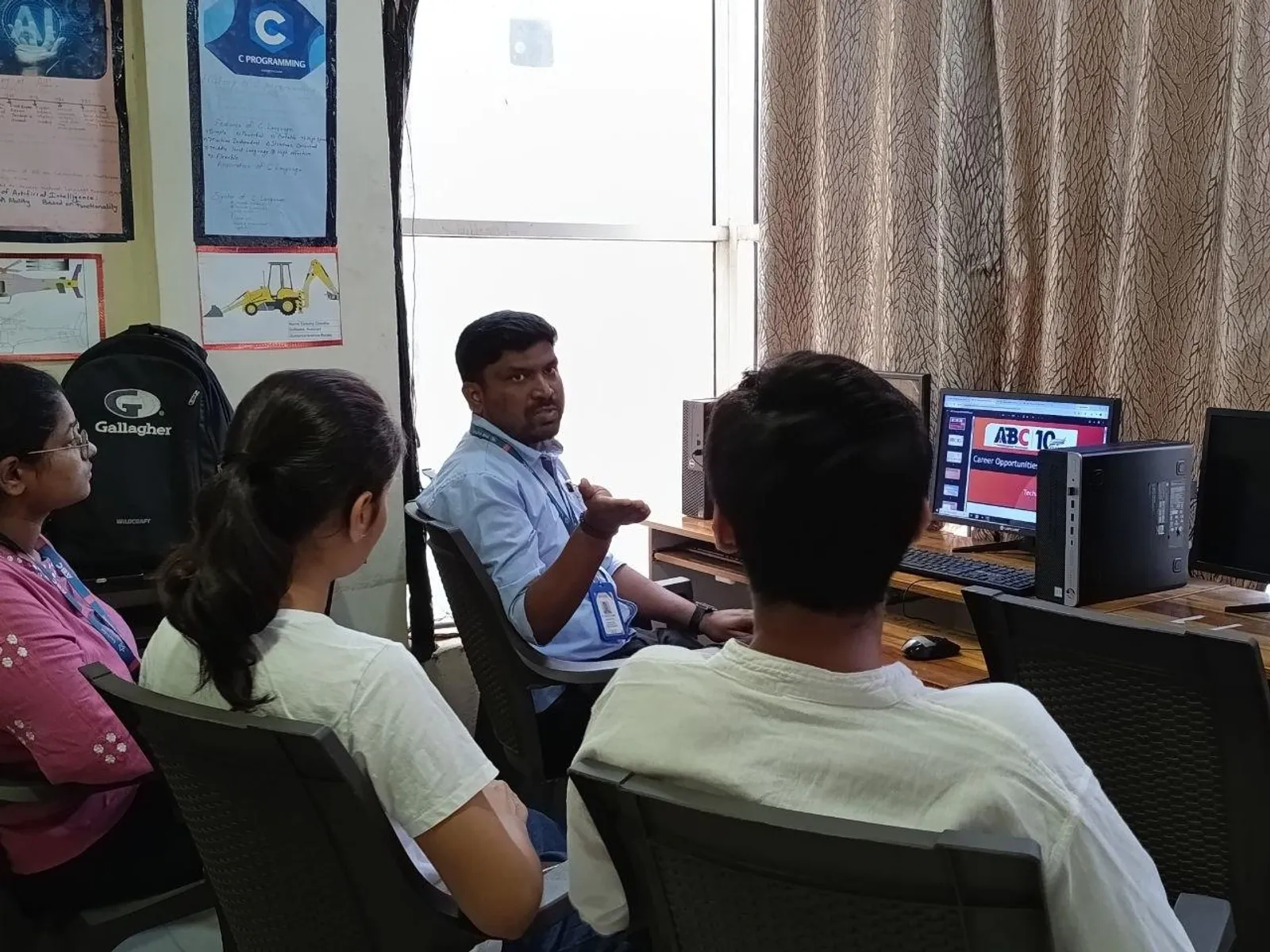
Print the cheat sheet above and keep it beside your screen. For the first week, focus only on the nine modify shortcuts, forcing yourself to type them instead of clicking. In the second week, add the annotation, view and snap groups. By the end of a fortnight of deliberate practice they become muscle memory and you stop thinking about them entirely. ABC Trainings builds this practice into its BIM and Revit course at the Wagholi and Hadapsar centres in Pune, so students graduate already working at speed rather than learning shortcuts on the job.
Get the BIM & Revit Training Brochure + Fees + Batch Dates on WhatsApp
Free 1:1 counselling. Placement track record. CMYKPY/PMKVY eligibility check.
💬 Get Brochure on WhatsApp📞 Call 7039169629About the author: Komal Chilwar, Civil & BIM Trainer, ABC Trainings.
Visit Our Centers
- Wagholi (Pune): 1st Floor, Laxmi Datta Arcade, Pune-Ahilyanagar Highway. Call 7039169629
- Hadapsar (Pune HQ): 1st Floor, Shree Tower, opp. Vaibhav Theater, Magarpatta. Call 7039169629
- Cidco (Chh. Sambhajinagar): Kalpana Plaza, opp. Eiffel Tower, N-1 Cidco. Call 7039169629
- Osmanpura (Chh. Sambhajinagar): S.S.C Board to Peer Bazar Road, near Jama Masjid. Call 7039169629
- Sangli: Shubham Emphoria, 1st Floor, Above US Polo Assn., Sangli-Miraj Rd, Vishrambag. Weekend batches available. Call 7039169629
FAQs
What are the most important Revit keyboard shortcuts for beginners?
The shortcuts beginners use most are the modify tools and snaps: MV (Move), CO (Copy), RO (Rotate), MM (Mirror), AL (Align), TR (Trim), DI (Dimension), and the view shortcuts WT (tile windows), WC (cascade), and ZF (zoom to fit). Master these first because they cover the majority of daily modelling actions and immediately speed you up.
Can I customise keyboard shortcuts in Revit?
Yes. Go to the File menu, Options, User Interface, and click Customize next to Keyboard Shortcuts. You can assign or reassign two-letter combinations to any command, search by command name, and export or import the shortcut file (KeyboardShortcuts.xml) so your setup follows you between machines. Customising the handful of commands you use most is one of the fastest productivity wins.
Do Revit shortcuts work the same in Revit Architecture, Structure and MEP?
The core navigation, modify and snap shortcuts are identical across all three Revit disciplines because they share the same interface. Discipline-specific tools (such as duct or pipe tools in MEP) have their own shortcuts, but once you learn the common set, switching between disciplines is seamless. This is one reason Revit skill transfers well across roles.
Will memorising shortcuts actually help me get a BIM job in Pune?
Indirectly but meaningfully. Speed and fluency make you visibly more competent in a hands-on interview test, and they let you finish more in a working day, which is what Pune employers value. Shortcuts are not the skill itself, but a modeller who works fluidly looks far more experienced than one who hunts through ribbons. Combine shortcut fluency with solid BIM understanding for the strongest impression.