Link, Don't Import: The Revit Habit That Separates Student Projects From Real Multi-Consultant Pune Jobs
Almost every BIM Diploma student in Pune builds their first few models solo — one person, one file, no coordination required. The first time that changes, usually on a first internship or a live project, is also the first time most students discover that Revit's Import command, which worked fine for a solo coursework model, is close to unusable on a real multi-consultant job. The fix is simple once you know it: link, don't import. But understanding why matters more than memorising the rule.
What Import Actually Does
Importing a file — whether a DWG site plan, an IFC from a structural consultant, or another team's Revit model exported as such — copies that geometry permanently into your own project file. It becomes native data inside your model, with no ongoing connection back to the source. That's fine for a one-off reference sketch you'll trace over once. It's a serious problem the moment the source file changes, because your imported copy doesn't update — you'd have to delete it and re-import manually, every single time, and remember to do it.
What Linking Does Instead
A linked file stays external and live. Your project references the architect's model, the structural consultant's model, or the MEP consultant's model without absorbing their geometry into your own file — so when they push an update, you reload the link and your view refreshes to match, without you rebuilding anything by hand. On a real Pune AEC project, where architecture, structure and MEP consultants are typically different firms working in parallel and issuing revisions on their own schedules, this isn't a nice-to-have. It's the only practical way multiple consultants stay coordinated without weekly file-comparison chaos.
Where Students Actually Get Tripped Up
Three mistakes come up repeatedly once students move from solo coursework to a linked, multi-consultant setup. First, linking at the wrong origin — if shared coordinates and a common base point weren't set up correctly (a topic we've covered separately in our walkthrough of a typical BIM Diploma classroom day), linked models can appear miles away from where they should sit. Second, forgetting to reload links after a consultant issues a revision, which means you're coordinating against stale data without realising it. Third, linking a model as "Overlay" instead of "Attachment," which quietly breaks the link when that file is later linked into a third project — a mistake that's invisible until someone downstream can't see your work at all.
Why This Is a Coordinator-Track Skill, Not Just a Modeller-Track One
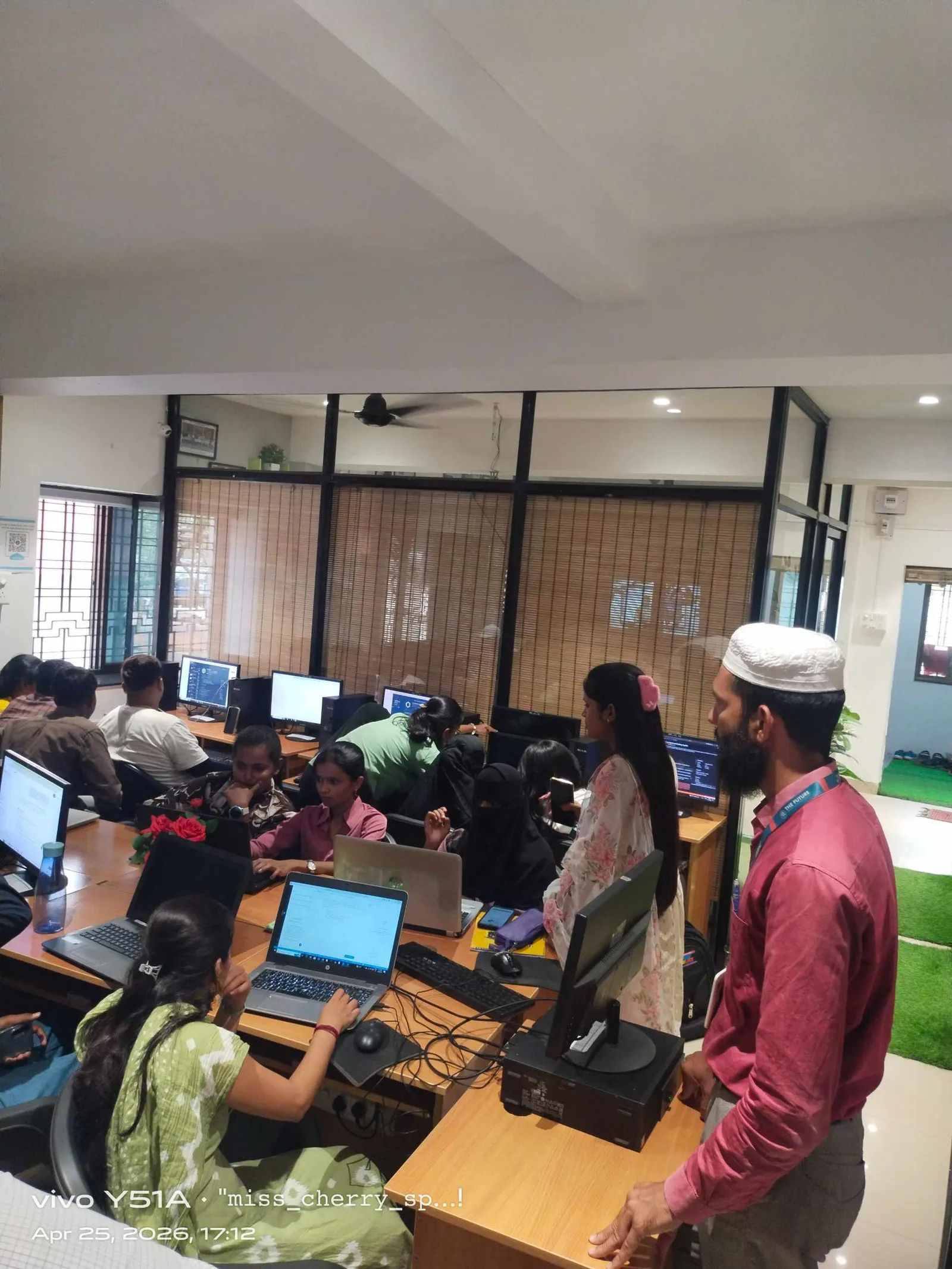
Getting comfortable with linking, reload behaviour and shared coordinates is genuinely one of the clearer lines between a Revit modeller who can build a single-discipline model well and a BIM Coordinator who can be trusted to manage a live, multi-consultant federated model without breaking someone else's work. It's a small technical habit with an outsized effect on whether you're trusted with coordination responsibility early in your career — and it's exactly the kind of hands-on, project-based practice our BIM Diploma batches at Wagholi and Hadapsar build in before students sit for their first live project.
Get Brochure + Fees + Batch Dates on WhatsApp
Free 1:1 counselling. Placement track record. CMYKPY/PMKVY eligibility check.
💬 WhatsApp 7774002496📞 Call 7039169629Visit Our Centers
- Wagholi (Pune): 1st Floor, Laxmi Datta Arcade, Pune-Ahilyanagar Highway. Call 7039169629
- Hadapsar (Pune HQ): 1st Floor, Shree Tower, opp. Vaibhav Theater, near Bloom Hotel, Magarpatta. Call 7039169629
- Cidco (Chh. Sambhajinagar): Kalpana Plaza, opp. Eiffel Tower, N-1 Cidco. Call 7039169629
- Osmanpura (Chh. Sambhajinagar): S.S.C Board to Peer Bazar Road, near Jama Masjid. Call 7039169629
- Sangli: Shubham Emphoria, 1st Floor, Above US Polo Assn., Sangli-Miraj Rd, Vishrambag. Weekend batches available. Call 7039169629
Get Brochure + Fees + Batch Dates on WhatsApp
Free 1:1 counselling. Placement track record. CMYKPY/PMKVY eligibility check.
💬 WhatsApp 7774002496📞 Call 7039169629Visit Our Centers
- Wagholi (Pune): 1st Floor, Laxmi Datta Arcade, Pune-Ahilyanagar Highway. Call 7039169629
- Hadapsar (Pune HQ): 1st Floor, Shree Tower, opp. Vaibhav Theater, near Bloom Hotel, Magarpatta. Call 7039169629
- Cidco (Chh. Sambhajinagar): Kalpana Plaza, opp. Eiffel Tower, N-1 Cidco. Call 7039169629
- Osmanpura (Chh. Sambhajinagar): S.S.C Board to Peer Bazar Road, near Jama Masjid. Call 7039169629
- Sangli: Shubham Emphoria, 1st Floor, Above US Polo Assn., Sangli-Miraj Rd, Vishrambag. Weekend batches available. Call 7039169629