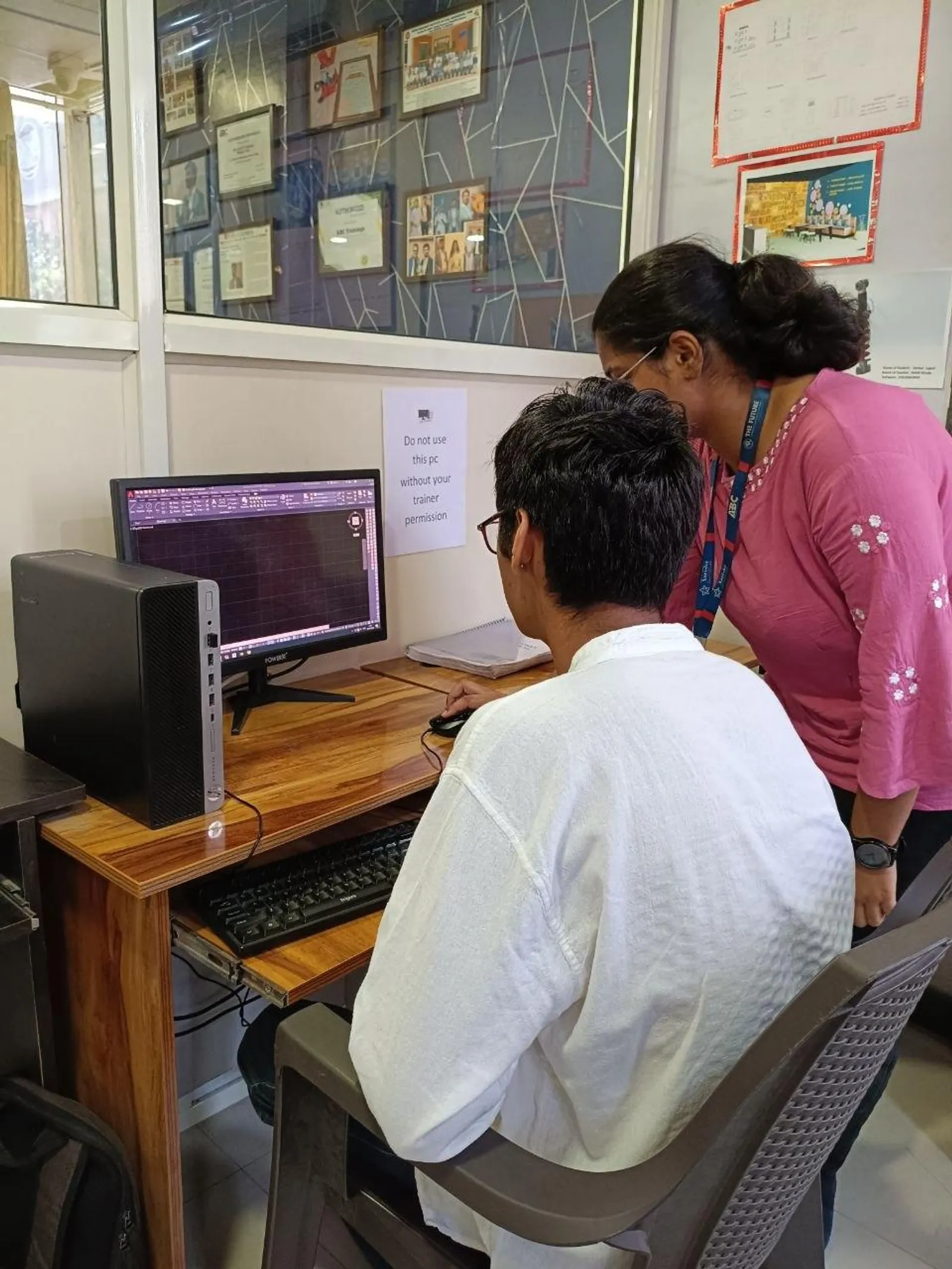
If you already know basic AutoCAD commands and want to work faster, cleaner, and with fewer repetitive clicks, AI Power Tools for AutoCAD is where things start getting interesting. This smart drafting workflow is becoming practical for civil and architecture users across India, especially when you use AI to generate small AutoLISP routines for repetitive tasks like drawing standard shapes, creating layers, and setting drafting rules. Here's the thing: AI won't replace drafting skill, but it can remove a lot of the boring work that slows you down.

The video topic focuses on smart drafting using AI power tools in AutoCAD, with examples like asking ChatGPT to generate simple AutoLISP scripts for rectangles, circles, and standard layer creation. That may sound basic at first, but trust me, this is exactly how advanced users build real production workflows. What most people don't realize is that small scripts, when used properly, save hours every week in consulting firms, contractor offices, and design teams in Pune, Chhatrapati Sambhajinagar, Nashik, and Mumbai.
How do AI power tools actually help in AutoCAD smart drafting?

At an advanced level, AI helps in three areas: command generation, scripting support, and drafting standardization. Instead of manually writing every AutoLISP routine from scratch, you can describe your requirement in plain English and get a usable script structure in seconds. The good news is, even if the first output isn't perfect, it gives you a working base that you can test and refine.
For example, in a civil drafting office, you might need a routine that creates road centerline layers, plot boundary layers, text layers, and dimensions with standard colors and linetypes. In architecture, you may want wall, door, window, furniture, hatch, and annotation layers built automatically before drafting starts. AI speeds up this setup stage.
Professionals working on support teams for firms connected to Tata Technologies, L&T, Siemens, or Thermax often don't waste time on repeat setup. They use templates, standards, and automation. AI-generated AutoLISP can support that same approach.
What are the best advanced use cases after basic rectangle and circle scripts?
Once you've tested simple scripts, move to controlled production tasks. Don't jump straight into highly complex automation. Start with tasks that are repetitive, measurable, and easy to verify.
1. Standard layer creation routines
This is the first serious productivity win. Ask AI to generate a script that creates predefined layers with names, colors, lineweights, and linetypes. For example: C-ROAD, C-TEXT, C-DIM, A-WALL, A-DOOR, A-HATCH. In many Indian offices, layer inconsistency is one of the biggest reasons drawings become messy during revisions.
2. Title block and annotation helpers
You can create routines that insert text at standard heights, place north symbols, add revision clouds, or switch to dimension styles automatically. If you're handling multiple municipal submissions or contractor drawings, this saves real time.
3. Repetitive geometry generation
Boundary walls, grid bubbles, inspection chambers, parking slots, room tags, and standard furniture blocks are ideal candidates. These are not glamorous tasks, but they consume hours.
4. Draft checking support
Advanced users also use AI to build helper routines that detect missing layer names, incorrect object placement, or text on wrong layers. It won't replace checking experience, but it creates a good first filter.
How should you prompt ChatGPT for better AutoLISP scripts?
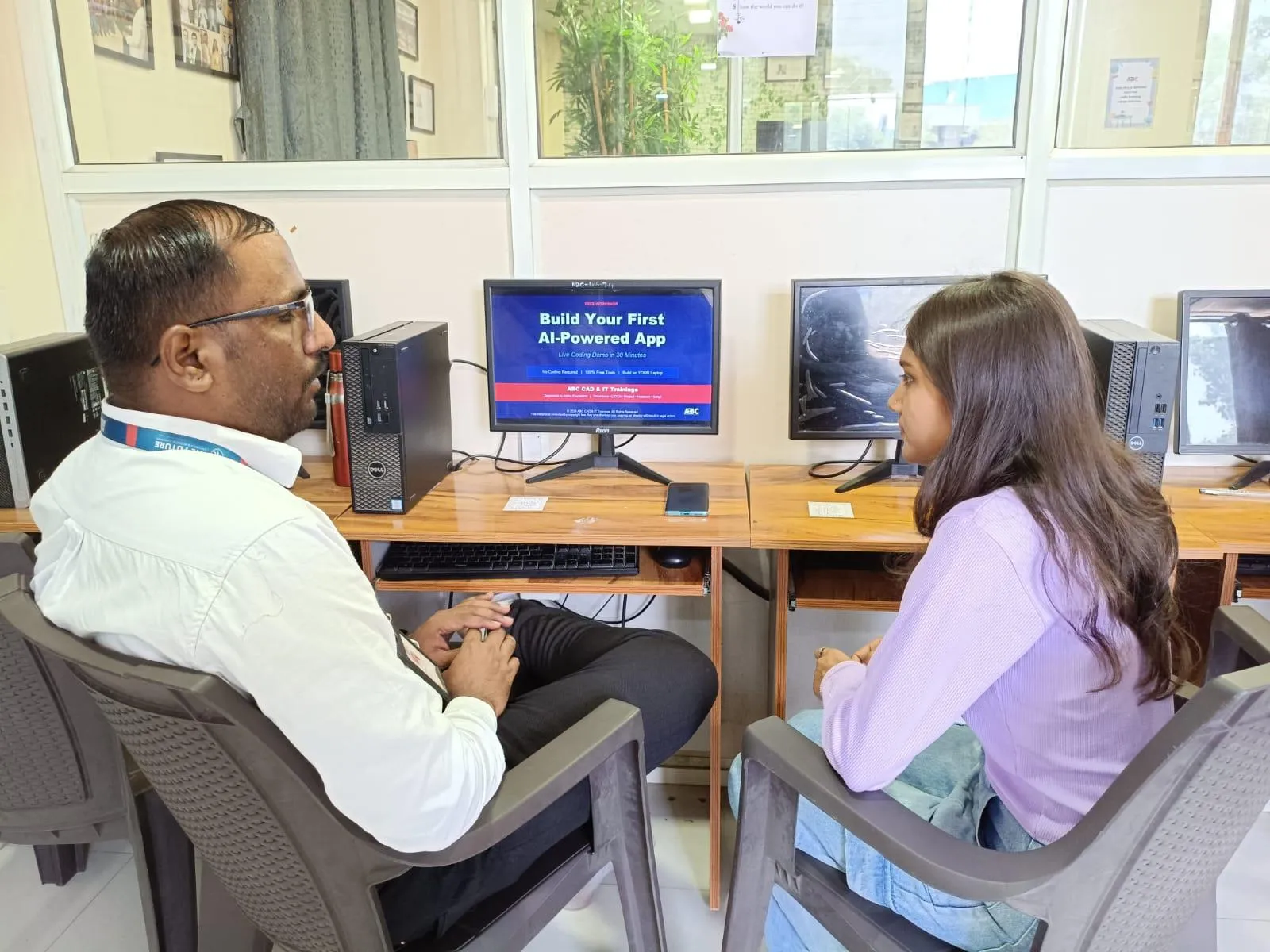
This is where power users separate themselves from beginners. If your prompt is vague, your script will be vague. If your prompt includes exact drafting rules, you'll get a much better result.
Use this structure:
Software version: AutoCAD 2025 or AutoCAD 2026
Task: Create layers automatically
Layer names: list exact names
Properties: color, linetype, lineweight
User interaction: ask whether command should run silently or ask for input
Error handling: avoid duplicate layer issues
Output: clean AutoLISP code with comments
For example, instead of saying “make a layer script,” say: “Write an AutoLISP routine for AutoCAD 2026 that creates layers A-WALL, A-DOOR, A-WIND, A-TEXT, and A-DIMS with specified colors and continuous linetype. If a layer already exists, skip it. Add comments so I can edit later.”
Here's the thing: AI is only as useful as your drafting clarity. Senior drafters and CAD engineers at Bosch, Kirloskar, or Mahindra Engineering don't think in random commands. They think in standards.
What settings and checks should professionals use before running AI-generated code?
Never paste code directly into live project work without testing. That's a beginner mistake. Create a test drawing and verify the routine first.
Keep a sandbox DWG
Use one trial file where you test every new routine. Check if the script creates the right layers, if text styles are correct, and whether object snaps or current layer settings get disturbed.
Use company naming conventions
Many firms in Pune and Mumbai use internal CAD standards. If your script creates the wrong naming pattern, your drawing may fail internal review. Match office standards exactly.
Comment your code
Ask AI to include comments in the script. Six months later, you'll thank yourself. This matters a lot when teams share routines.
Watch for units and scale assumptions
What most people don't realize is that many automation errors come from wrong assumptions about units, text height, or annotation scale. A layer script may work fine, but a geometry script may create objects at the wrong size if your prompt doesn't define units clearly.
How do advanced drafters build a real smart drafting workflow?
A proper workflow is not “ask AI one random question and hope for magic.” It should look like this:
Step 1: Identify one repetitive drafting task.
Step 2: Write the drafting standard clearly.
Step 3: Ask AI for AutoLISP code with comments.
Step 4: Test in a sample drawing.
Step 5: Fix errors and refine the prompt.
Step 6: Save the final routine in your support path or startup suite.
Step 7: Document when your team should use it.
This is how small automations become production assets. A civil drafter making ₹18,000 to ₹28,000 per month in Chhatrapati Sambhajinagar can stand out quickly by building these workflow habits. In Pune, experienced AutoCAD professionals with automation ability often move into ₹30,000 to ₹45,000 roles faster, especially in infrastructure, architecture support, and industrial layout work. If you combine drafting with standards and automation, salaries can go higher in larger firms and vendor ecosystems linked to Bajaj Auto, TCS, Infosys, or KPIT Technologies for technical support and engineering documentation roles.
Which smart drafting tasks are worth automating in civil and architecture work?
For civil users, focus on plot layouts, road cross-sections, utility markings, contour annotation helpers, and standard legend preparation. For architecture users, focus on room labels, wall hatch setup, door-window layer management, furniture placement helpers, and sheet annotation routines.
Trust me, the biggest gains usually come from boring office work, not flashy demos. If a routine saves just 8 minutes per drawing and you handle 4 drawings a day, that becomes serious monthly time savings.
Where can Maharashtra students learn this properly in 2026?
If you want practical guidance instead of random internet experiments, learn from trainers who understand both AutoCAD drafting and industry workflow. ABC Trainings works with students from Chhatrapati Sambhajinagar, Pune, and Sangli who want more than textbook commands. The goal should be simple: not just drawing faster, but building office-ready CAD habits.
If you want to understand AutoCAD smart drafting, AI-assisted AutoLISP basics, and how to apply them in real project work, you can contact ABC Trainings at 8698270088 or WhatsApp 7774002496. The good news is, once you understand the logic behind these routines, you'll stop treating automation like something only programmers can do.
Can AI-generated AutoLISP really help AutoCAD users in India?
Yes, especially for repetitive drafting tasks like layer creation, text setup, simple geometry, and annotation helpers. It's useful for civil and architecture users who already know AutoCAD basics and want to work faster. In India, this is practical for small firms, consultants, and training-focused learners because it reduces manual setup time without needing deep programming knowledge.
Is smart drafting with AI enough to get a job in Pune or Sambhajinagar?
By itself, no. Employers still expect strong AutoCAD fundamentals, drawing accuracy, layer discipline, plotting knowledge, and project understanding. But if two candidates have similar drafting skills, the one who can automate repetitive work often gets noticed faster in firms handling architecture, industrial, or civil documentation.
Which AutoCAD version is best for learning AI-assisted drafting in 2026?
AutoCAD 2025 and AutoCAD 2026 are both good choices because most current offices are shifting toward newer workflows and better support environments. The scripting logic stays similar, so your focus should be on command behavior, AutoLISP testing, and drafting standards. If your local employer still uses an older version, the concepts are still transferable.
How do I start if I know AutoCAD but not AutoLISP?
Start with very small scripts: create layers, draw a rectangle, draw a circle, or set text styles. Then test each script in a sample drawing and understand what each line does. That's the safest path for students and working professionals in Maharashtra who want to move from manual drafting into smart drafting without getting overwhelmed.
Visit Our Centers
Chhatrapati Sambhajinagar
Corporate Office (HQ)
2nd Floor, Kandi Towers, Jalna Road, Amarpreet Chowk, Chhatrapati Sambhajinagar, Maharashtra 431001
Osmanpura Branch
Plot No 14, Shanya Sect, Near Sant Eknath Rang Mandir, Osmanpura, Chhatrapati Sambhajinagar, Maharashtra 431005
CIDCO Branch
Plot No 4, N-3, Cidco, Opp. High Court, Chhatrapati Sambhajinagar, Maharashtra 431003
Pune
Wagholi Branch
1st Floor, ABC Trainings, Laxmi Datta Arcade, Pune - Ahilyanagar Hwy, Wagholi, Pune, Maharashtra 412207
Hadapsar Branch
Bloom Hotel, ABC Trainings 1st Floor, S.no 156/3 Shree Tower Pune - Solapur Rd, Hadapsar, Pune, Maharashtra 411028
Sangli
Sangli Branch
2nd Floor, Vasant Market, Opp. City High School, Sangli, Maharashtra 416416
Start Your Career Journey Today
Join 10,000+ students who transformed their careers with ABC Trainings.
💬 WhatsApp: 7774002496📞 Call: 8698270088