NX CAD Essentials Beginners Guide Episode 10: Sketching and 3D Part Modeling from Scratch (Updated June 2026)
Every expert NX CAD user started exactly where you are now — looking at the interface and not knowing where to click. Episode 10 is the right starting point. India's AURIC manufacturing zone in Sambhajinagar has attracted ₹71,343 crore in investment and 62,405 jobs across companies like Skoda VW Shendra (Plot A-1/1) and Bajaj Auto Waluj (Plot G-137). The mechanical designers those companies hire all began with the same fundamentals: the NX Sketcher, dimensional constraints, and the Extrude command. Get these right and everything in NX CAD builds logically on top. Miss them and no amount of watching advanced tutorials will help.
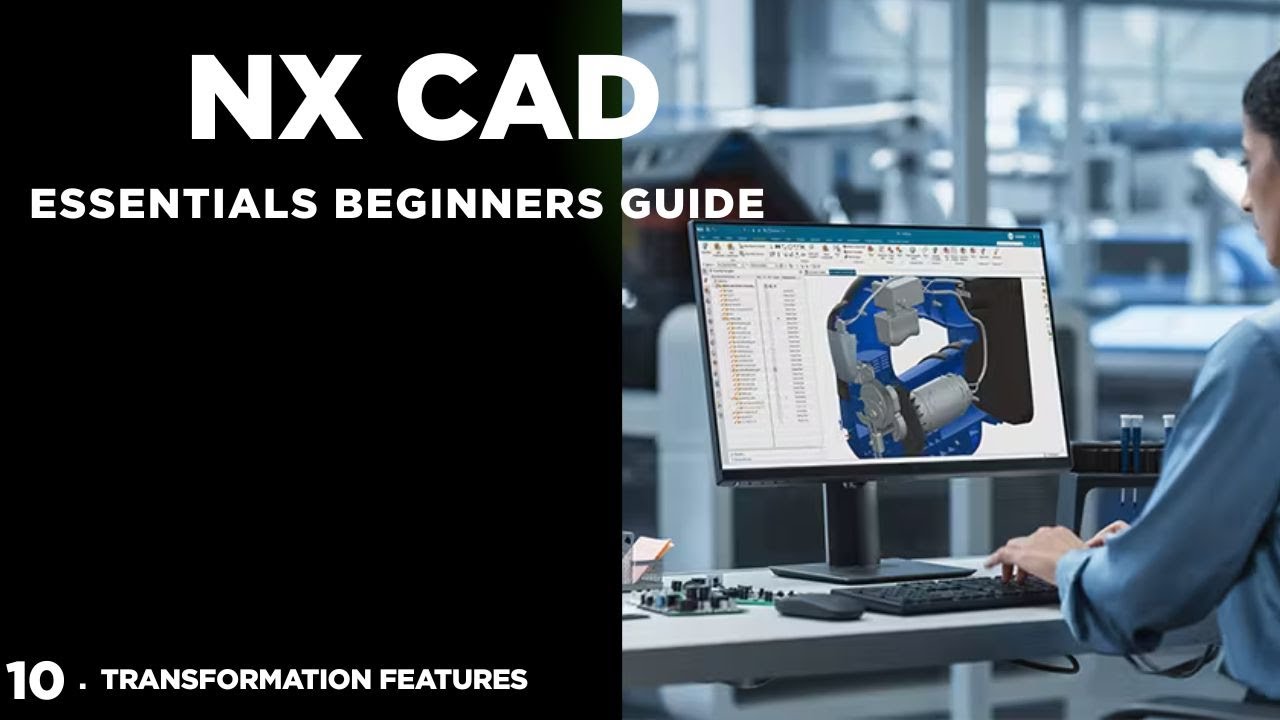
- The NX Sketcher is where every 3D model starts — a 2D profile that gets extruded or revolved into a solid
- Fully-constrained sketches (all geometry fixed with dimensions + geometric constraints) are non-negotiable for production work
- Extrude turns a 2D profile into a 3D solid — the most-used command in NX CAD
- Revolve creates axisymmetric parts (shafts, flanges, pulleys) by rotating a profile around an axis
- Understanding Boolean operations (Unite, Subtract, Intersect) lets you combine and cut solids in complex ways
Understanding the NX CAD Interface Before You Touch a Sketch
Before you sketch your first line, spend 15 minutes with the NX CAD interface. The ribbon toolbar at the top contains all commands — but the right-click context menu is faster once you know the tool names. The Resource Bar on the left holds the Part Navigator (your feature history tree — every operation you do is logged here and can be edited). The Graphics Window is your 3D workspace. The bottom status bar shows whether your sketch is fully constrained or not — this matters enormously. Learn to navigate 3D space with middle mouse button (pan), scroll wheel (zoom) and middle+right drag (rotate). These three mouse controls are the same across NX, SolidWorks and CATIA — master them once and you have them for life.

The NX Sketcher: Where Every 3D Model Begins
The Sketcher is a 2D drawing environment where you create the profiles that become 3D solids. You enter Sketcher by selecting a planar face or datum plane as your sketch plane, then clicking Insert > Sketch (or the Sketch button in the ribbon). Inside Sketcher, you draw lines, arcs, circles and splines. The most important concept: every sketch element has a "constraint state." An underconstrained element is free to move (shown in a lighter color). A fully-constrained element has all its position and size locked by dimensions and geometric constraints. NX shows the constraint count in the bottom toolbar — aim for "0 degrees of freedom" before exiting Sketcher. Underconstrained sketches cause unpredictable behavior when you later change dimensions.
| Sketch Constraint | What It Does | When to Apply |
|---|---|---|
| Coincident | Two points at same location | Connecting line endpoints |
| Horizontal / Vertical | Line is exactly H or V | Most profile lines |
| Tangent | Smooth junction: line meets arc | Blended profiles, cam shapes |
| Parallel / Perpendicular | Line angle relationship | Rectangular and angular features |
| Equal | Two entities are same size | Symmetric profiles, equal radii |
Geometric Constraints vs Dimensional Constraints: Why Both Matter
Geometric constraints define shape relationships between sketch elements: Parallel (two lines are parallel), Perpendicular (two lines meet at 90°), Tangent (a line meets a curve smoothly), Coincident (two points share the same location), Horizontal/Vertical (a line is exactly horizontal or vertical). Dimensional constraints define size: a 50mm length, a 25mm radius, a 45° angle. The reason both matter: geometric constraints are zero-cost — a "parallel" constraint doesn't add numbers to your model. Use as many geometric constraints as physically true for your part. Then add the minimum number of dimensions needed to fully constrain what remains. This approach produces models that update predictably when dimensions change — critical for design revisions at Bajaj Auto or Mahindra.
Extrude Command: Turning Your 2D Profile into a 3D Solid
Extrude is the command that transforms your 2D sketch profile into a 3D solid. Select the sketch, then Extrude, specify depth and direction. The Start/End distance fields let you extrude symmetrically, offset from the sketch plane, or up-to a face. The Boolean option at the bottom of the Extrude dialog is critical: None creates a new body, Unite adds material to an existing body, Subtract removes material (like cutting a hole), Intersect keeps only the overlap. These four options let you build complex parts by combining simple extrude operations. What most beginners miss: you can change the extrude direction, depth and Boolean operation after the fact by double-clicking the Extrude feature in the Part Navigator — no need to start over.
Revolve, Boolean Operations and When to Use Each
Revolve creates parts with rotational symmetry by spinning a 2D profile around an axis. It's how you model shafts, flanges, pulleys, wheels and turned components. Select your closed profile sketch, specify the revolution axis (a line in the sketch or a datum axis), and set the angle (360° for a full rotation). Boolean options work the same as Extrude. Beyond Extrude and Revolve, Boolean operations let you combine separately created solids: Unite merges two bodies into one, Subtract cuts one body from another (like drilling a hole through a block), Intersect keeps only where both bodies overlap. Understanding when to use Revolve instead of Extrude, and how to combine operations with Booleans, is what separates "can use NX" from "can design in NX."
Common Beginner Mistakes in NX CAD and How to Avoid Them
After training thousands of NX CAD beginners at Pune, Sambhajinagar and Sangli centers, here are the mistakes I see most often. First: not fully constraining sketches — always check the constraint counter before exiting Sketcher. Second: sketching on the wrong plane — if your first extrude goes the wrong direction, you picked the wrong face. Third: using Extrude's Boolean "None" instead of "Unite" when adding material — creates unnecessary multi-body parts. Fourth: not using the Part Navigator to edit features — beginners delete and redo; professionals double-click the feature in the tree and change the value. Fifth: forgetting to save versions before major changes — NX doesn't auto-save in all configurations. These five habits, built early, make you dramatically more productive than 80% of beginners who skip them.
Get the NX CAD Training Brochure + Fees + Batch Dates on WhatsApp
Free 1:1 counselling. Placement track record. CMYKPY/PMKVY eligibility check.
💬 Get Brochure on WhatsApp📞 Call 7039169629About the author: Rahul Patil. 12 yrs experience training mechanical and CAD/CAM engineers across Maharashtra.
Visit Our Centers
- Wagholi (Pune): 1st Floor, Laxmi Datta Arcade, Pune-Ahilyanagar Highway. Call 7039169629
- Hadapsar (Pune HQ): 1st Floor, Shree Tower, opp. Vaibhav Theater, Magarpatta. Call 7039169629
- Cidco (Chh. Sambhajinagar): Kalpana Plaza, opp. Eiffel Tower, N-1 Cidco. Call 7039169629
- Osmanpura (Chh. Sambhajinagar): S.S.C Board to Peer Bazar Road, near Jama Masjid. Call 7039169629
- Sangli: Shubham Emphoria, 1st Floor, Above US Polo Assn., Sangli-Miraj Rd, Vishrambag. Weekend batches available. Call 7039169629
FAQs
Do I need any prior CAD experience before starting NX CAD from Episode 10?
No prior CAD experience is needed for Episode 10. The series starts from absolute zero — we assume you've never opened NX CAD before. Basic computer literacy (comfortable with a mouse, knows how to open files) is all you need. If you have AutoCAD 2D experience, you'll find the sketching concepts familiar, but the 3D workflow and interface are very different. Come in with an open mind and follow along with the video.
What is the difference between NX CAD and AutoCAD for beginners?
AutoCAD is primarily a 2D drafting tool — you draw flat plans, elevations and details. NX CAD is a full 3D solid modeling, assembly and simulation environment. AutoCAD is used for architectural drawings, civil plans and 2D documentation. NX CAD is used for mechanical 3D part and assembly design at Bajaj Auto, Mahindra, Tata Tech and KPIT. For a mechanical engineering career in manufacturing or automotive, NX CAD is far more relevant. AutoCAD is a useful secondary skill but shouldn't be your primary tool if you're targeting design roles.
How many episodes are in the ABC Trainings NX CAD beginner series?
The ABC Trainings NX CAD beginner series covers episodes from foundational sketching (Episode 10) through 3D part modeling, advanced features (Episode 11), assembly design and drafting (Episode 12) and beyond. The complete NX CAD course at our centers covers all these topics with hands-on practice on real industrial components — more thorough than the video series alone. Our classroom batches include instructor Q&A, project feedback and placement support.
Can I learn NX CAD through online classes at ABC Trainings?
Yes. ABC Trainings offers both classroom and online NX CAD training. Online sessions are live (not recorded), with real-time instructor interaction and screen-sharing demonstrations. You'll need NX CAD software access — our counselors will advise on licensed options. WhatsApp 7774002496 or call 7039169629 for the online batch schedule and fees.